Vše podstatné o firmě
v jednom systému
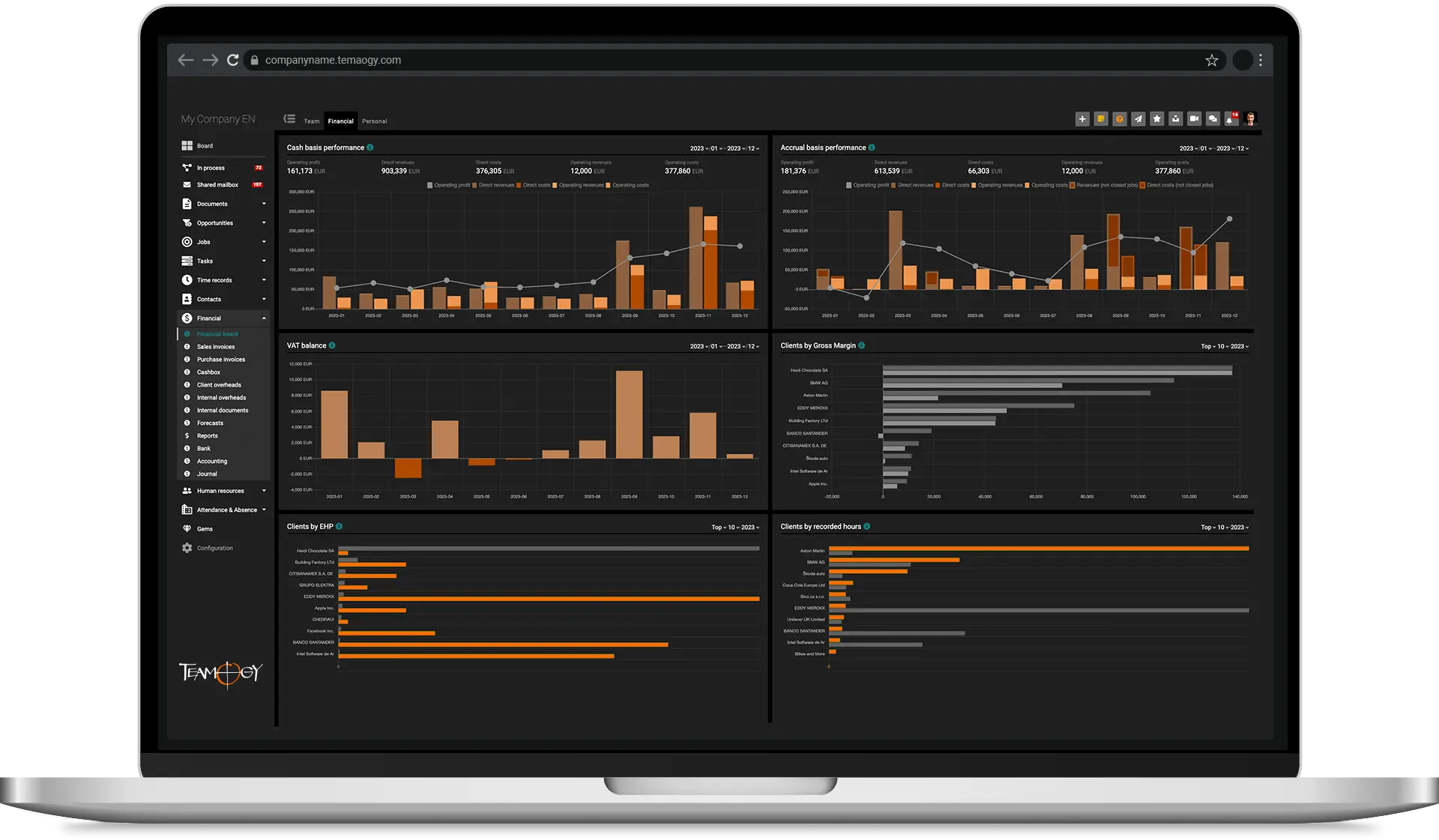
Moderní cloudový systém pro řízení firmy, financí, projektů, spolupráci a komunikaci týmu
Dělejte byznys, eliminujte chaos
Věnujte většinu času a energie klientům, týmu a poslání, pro které vaše firma vznikla.
Přizpůsobte Teamogy vašim individuálním potřebám a nechte ho růst společně s vaší firmou.
Udržujte data vzájemně provázaná a neztrácejte čas nadbytečnou administrativou.
Získejte skvělý přehled o fungování celé firmy kdykoliv a bez ptaní.
Tisíce uživatelů po celém světě používají Teamogy každý den



















Budujte skvělou firmu
Pořádek v datech o firmě zvyšuje hodnotu vaší firmy. Zároveň pořádkem a jasnými procesy ve firmě vytváříte prostředí, ve kterém mají chuť pracovat profesionálové.
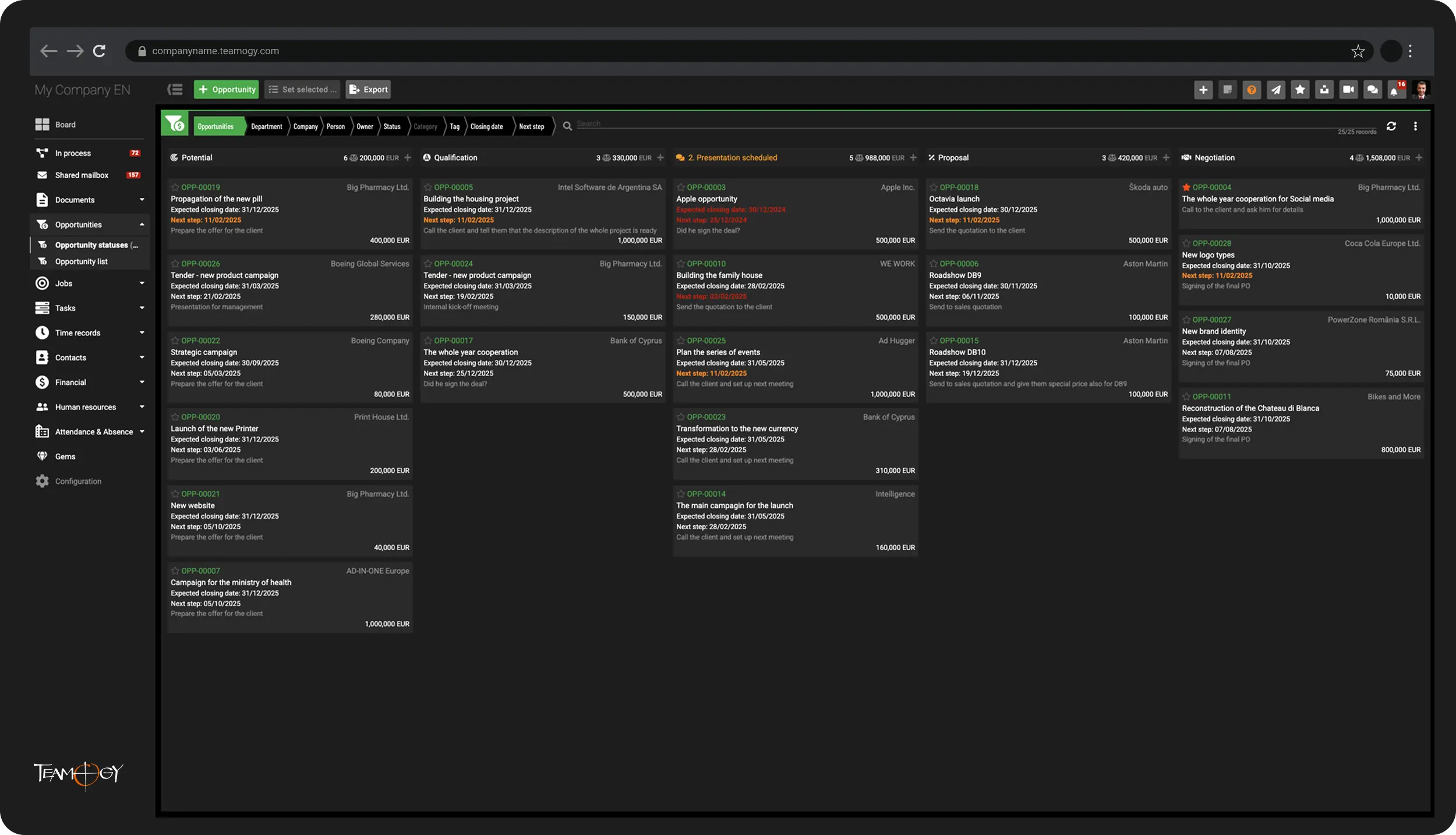
Nový byznys / CRM
Obchodní příležitosti vytěžené na maximum
Získávejte nový byznys a vyhrávejte výběrová řízení s přehledem. Zjistěte finanční potenciál jednotlivých příležitostí a plánujte správně další kroky. Mějte přehledně na jednom místě veškerou komunikaci k dané příležitosti ...
Project Management
Projekty vedené efektivně s odpovídajícím ziskem
Mějte pod kontrolou projekty v reálném čase, od jejich rozpočtování přes realizaci až po fakturaci. Optimalizujte ziskovost projektů ...
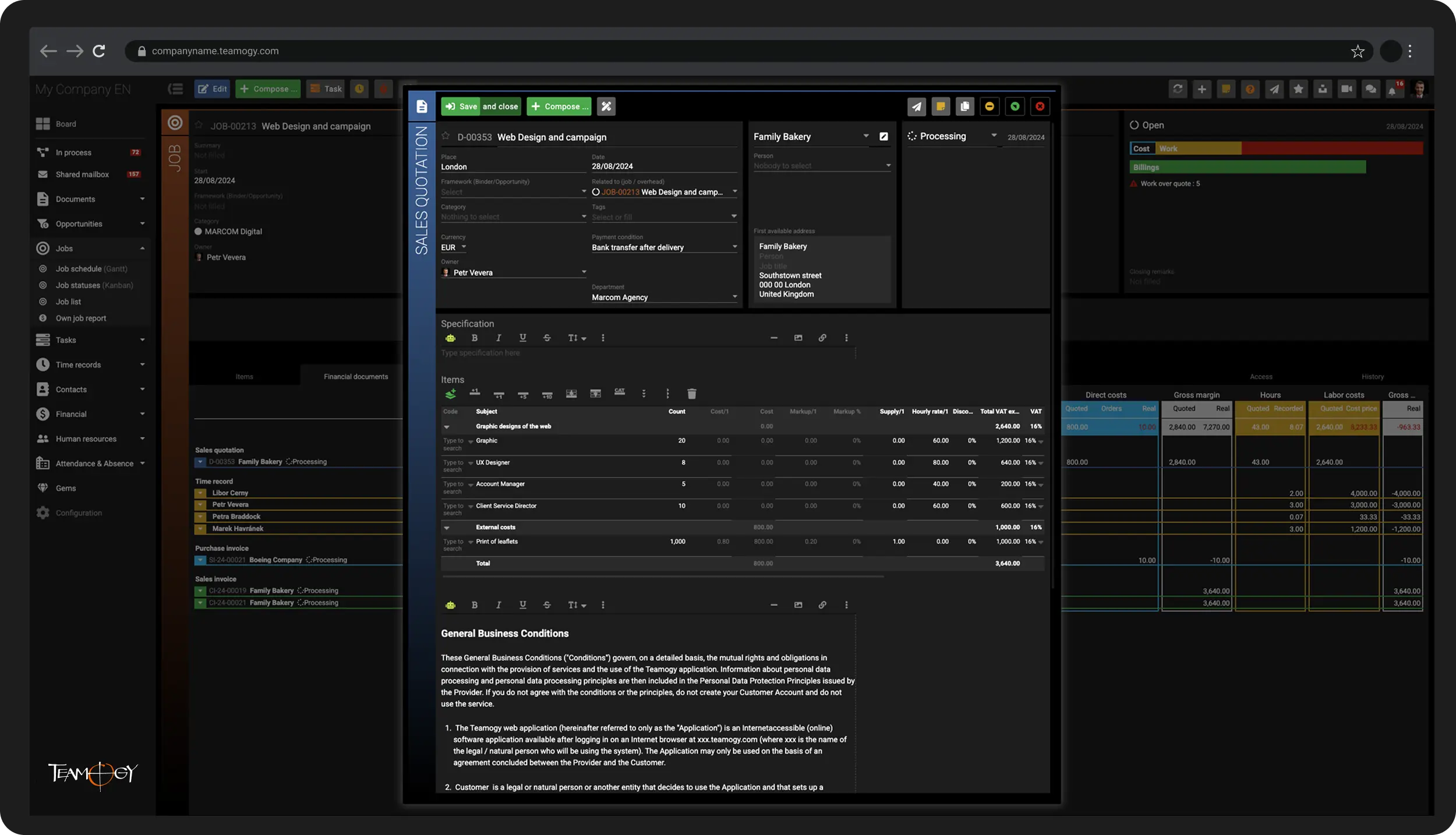
Project Management
Projekty vedené efektivně s odpovídajícím ziskem
Mějte pod kontrolou projekty v reálném čase, od jejich rozpočtování přes realizaci až po fakturaci. Optimalizujte ziskovost projektů ...
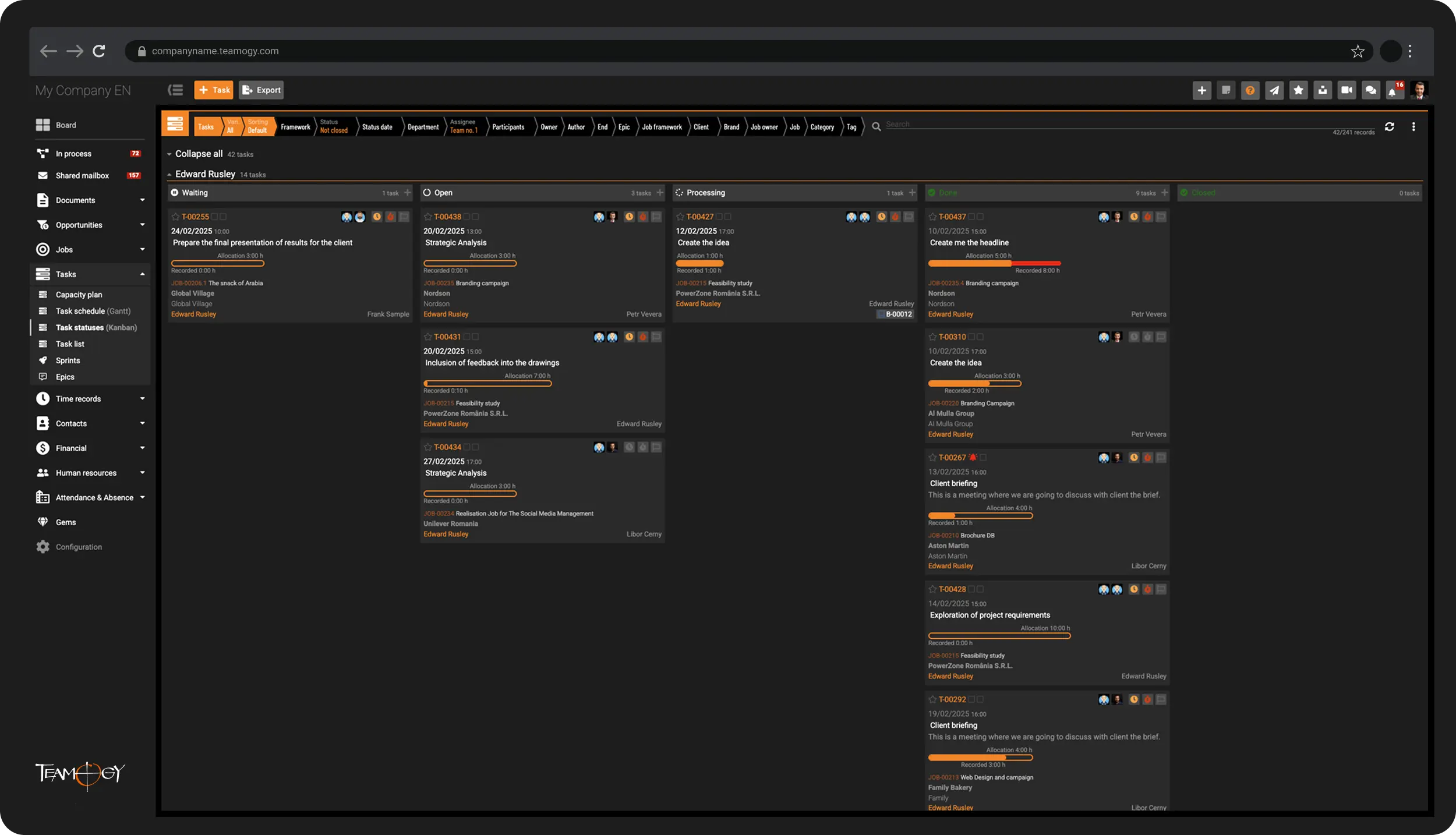
Týmová spolupráce
Přehled, na čem se právě pracuje a snadno dostupné informace pro realizaci úkolů
Získejte přehled, na čem kdo právě pracuje a mějte snadno dohledatelné informace pro realizaci úkolů.
Komunikace
Různé komunikační kanály na jediné platformě
Sdílejte a navždy uchovejte podstatné informace z různých komunikačních kanálů pro relevantní členy týmu ...
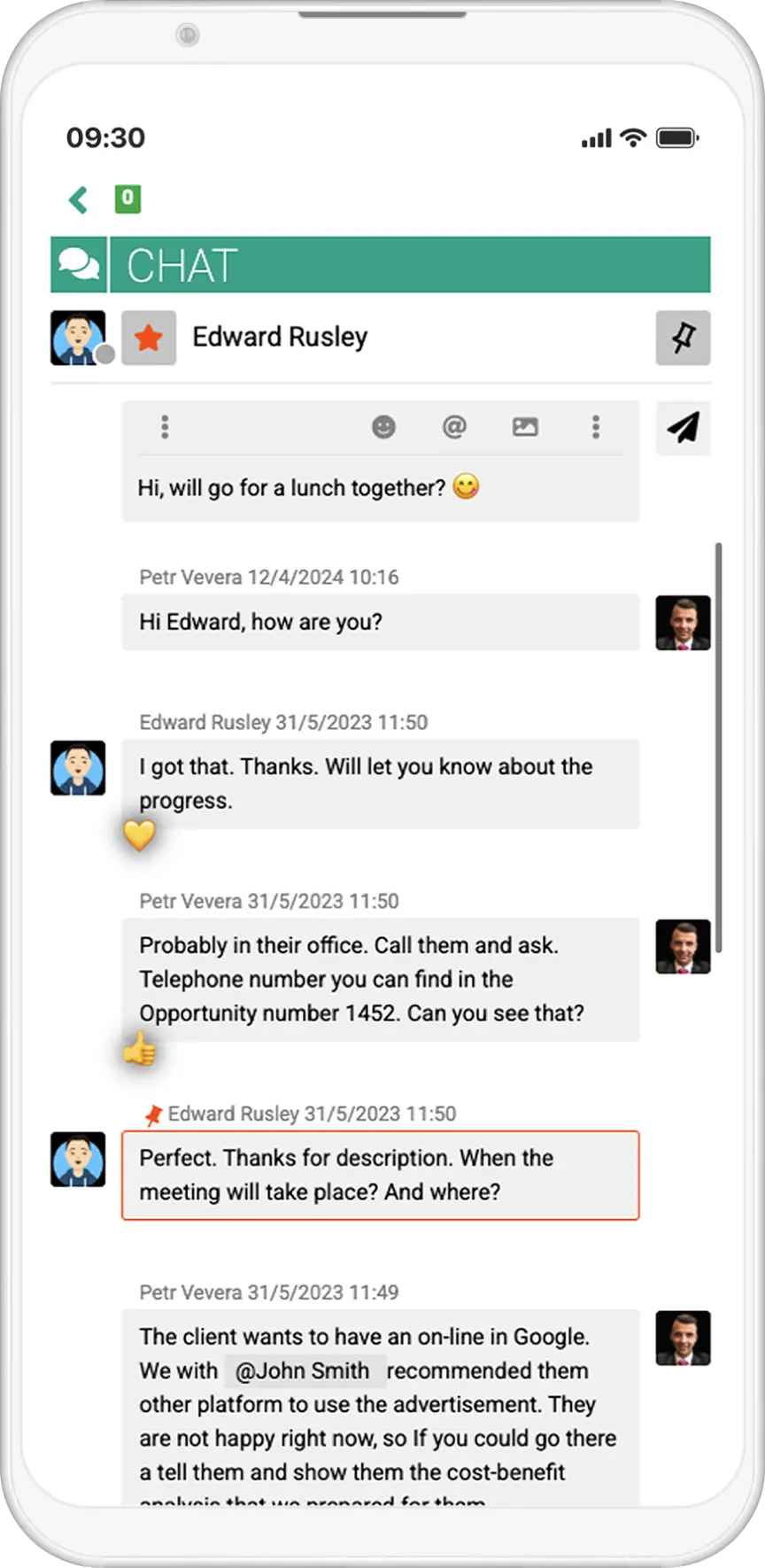
Komunikace
Různé komunikační kanály na jediné platformě
Sdílejte a navždy uchovejte podstatné informace z různých komunikačních kanálů pro relevantní členy týmu ...
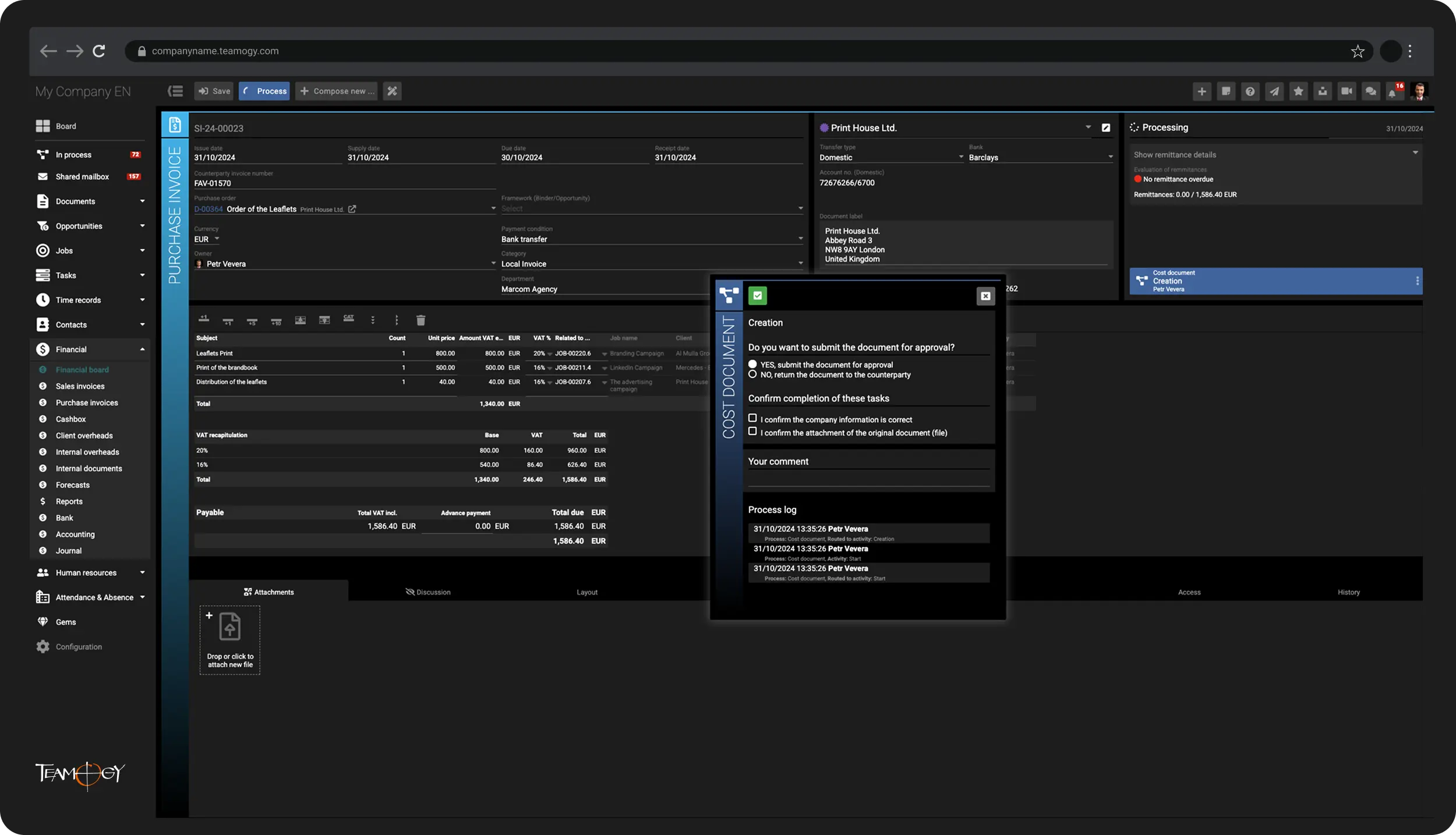
Finance
Konec zbytečnému úniku peněz
Pracujte se všemi finančními doklady přímo v Teamogy a získejte tak plnou kontrolu nad všemi firemními financemi ...
Reporting
Přehled o zisku z projektů, interních nákladech a P&L firmy kdykoliv a kdekoliv
Mějte možnost nadhledu, tzv. "Helicopter view" i detailní přehled v jediném systému. Podle toho, jaký si v Teamogy právě zvolíte pohled ...
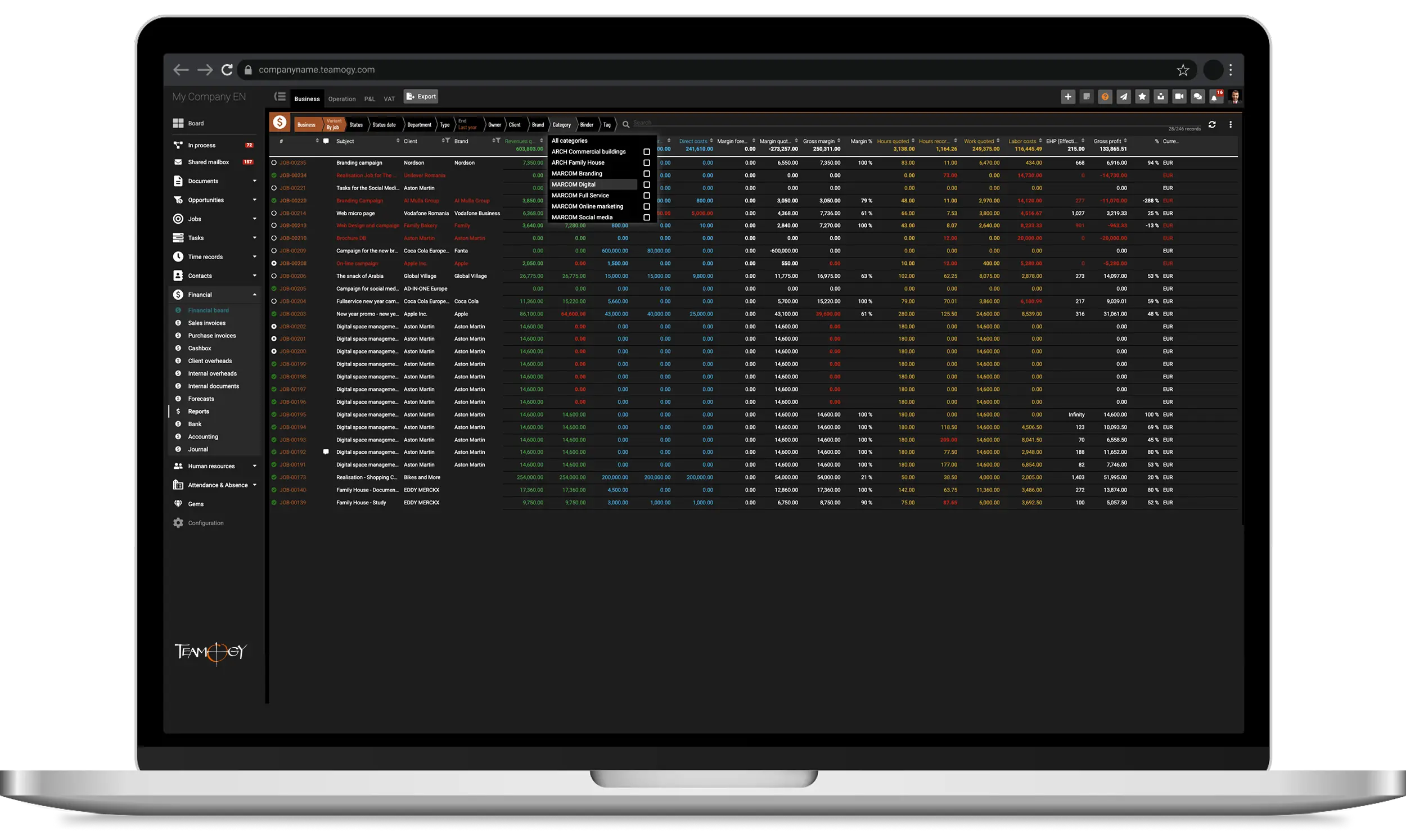
Reporting
Přehled o zisku z projektů, interních nákladech a P&L firmy kdykoliv a kdekoliv
Mějte možnost nadhledu, tzv. "Helicopter view" i detailní přehled v jediném systému. Podle toho, jaký si v Teamogy právě zvolíte pohled ...
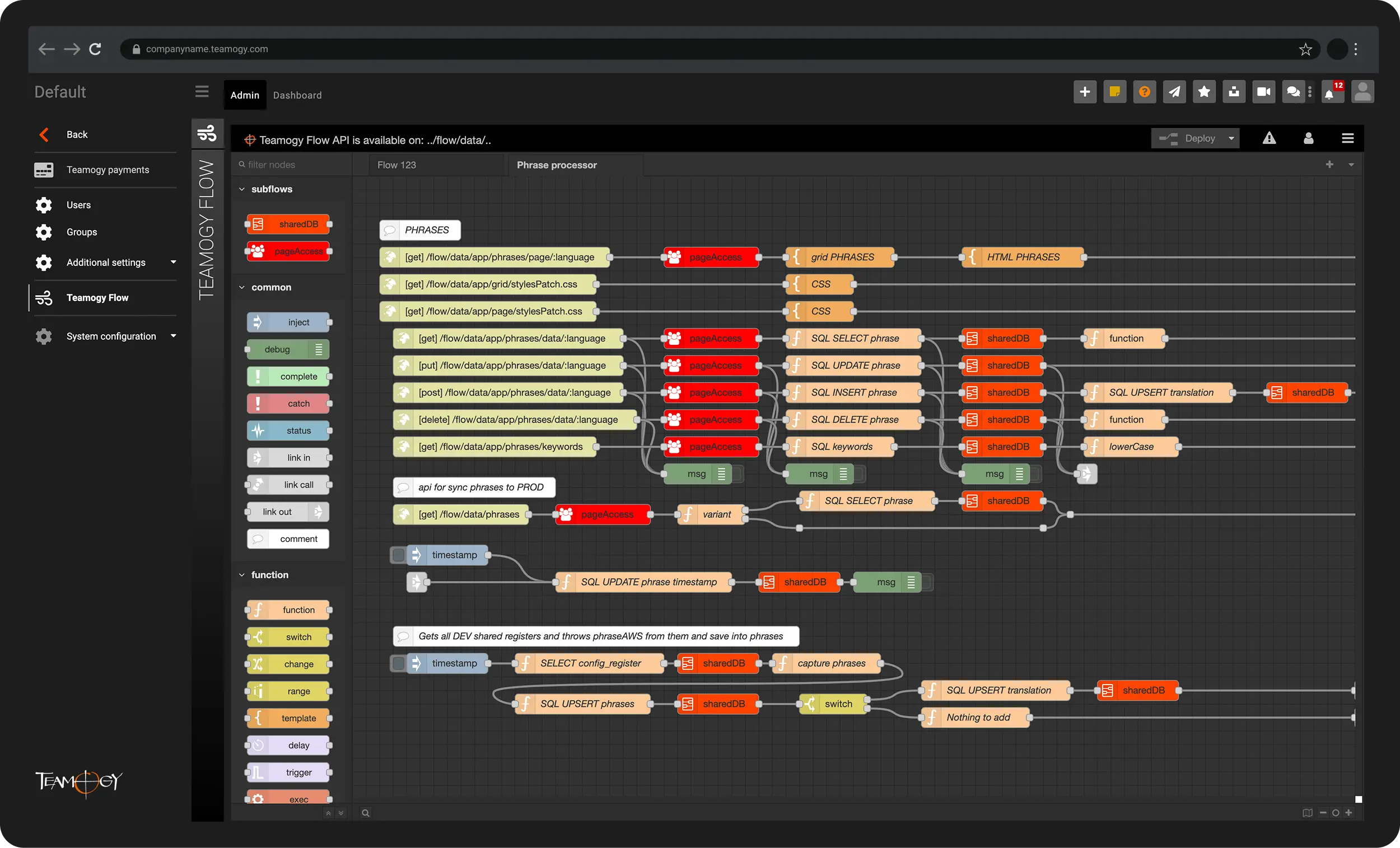
Integrace a automatizace
Teamogy integrace a automatizace pro efektivitu a úsporu času
Teamogy je otevřený systém s vlastním Public API a lze ho integrovat s nejrůznějšími externími aplikacemi a službami ...






All-in-one řešení pro řízení celé firmy


Čím je Teamogy unikátní
Kombinací 7 níže uvedených výjimečných vlastností systému Teamogy vzniká unikátní systém, který se umí velmi dobře přizpůsobit individuálním potřebám klienta. Práce uživatelů v systému je efektivní a příjemná.
Jazyky a lokalizace
Teamogy je připraven pro vícejazyčné týmy a regionální nastavení.
Přednastavené sazby DPH, měny a šablony dokumentů umožňují okamžité používání systému ve více než 20 zemích. Přednastavení pro další země je možné v krátkém čase.
Jedna nebo více obchodních jednotek
Teamogy podporuje správu více obchodních jednotek (firem) v jednom účtu.
Systém umožňuje efektivně řídit také holdingy, sítě firem nebo pobočky. Sdílení kontaktů, lidských zdrojů a reportingu napříč firmami z jednoho místa šetří čas a zjednodušuje procesy.
50 000+ přizpůsobení
Teamogy má důsledně oddělenou aplikační a byznys logiku.
Systém umožňuje široké přizpůsobení potřebám klienta a to na úrovni celého účtu nebo individuálně pro jednotlivé obchodní jednotky.
100% přívětivost
Komplexní a přehledný.
Teamogy spojuje komplexní řešení s opravdu vysokým počtem funkcionalit dohromady s uživatelskou přívětivostí. Potvrzují to pozitivní ohlasy napříč firemními pozicemi.
4 kroky precizního onboardingu
Od analýzy přes nastavení systému a školení až po klientský servis.
Teamogy nabízí precizní analýzu a nasazení systému, školení týmu a následný špičkový klientský servis obsahující online chat i individuální konzultace.
∞ integrací s Teamogy Flow
Integrace a automatizace šetří čas.
Teamogy umožňuje integrace a automatizace na míru. Využívá k tomu také vlastní platformu Teamogy Flow.
Reflektujeme potřeby a přání
S každou novou verzí se Teamogy se stále rozšiřuje a zlepšuje.
Systém je neustále vylepšován na základě vize, zpětné vazby z trhu a zpětné vazby od existujících uživatelů, jejich potřeby a přání se v čase mění nebo rozšiřují.
Vybrané reference


„Zaučení do systému Teamogy bylo velmi kvalitní a snadno pochopitelné, což nám usnadnilo začátek a celý proces onboardingu byl hladký. Opravdu mě těší, že můžeme tuto platformu používat — poskytuje nám jasný přehled o důležitých finančních informacích a zajišťuje, že správní lidé mají přístup k tomu, co potřebují. Nyní jsme schopni přesně analyzovat, kde a jak trávíme čas, a získáváme tak cenné poznatky o našem každodenním výkonu. Navíc nám Teamogy pomáhá zefektivnit provoz tím, že nahrazuje několik jiných platforem a vše spojuje do jednoho uceleného ekosystému.“
71 poboček, 1500+ marketingových expertů


„Vím kdykoliv, jak na tom agentura skutečně je. Skvělé pro správné rozhodování“
Michal Richtr, zakladatel a výkonný ředitel, Dynamo Design
1 – 50 uživatelů Teamogy


„Potřebujeme mít finance a projekty v pořádku. A to díky Teamogy máme.“
50 – 100 uživatelů Teamogy

„Teamogy nám umožňuje snadno a rychle získat přehled o celém fungování firmy. V systému sledujeme zakázky a související dokumenty včetně rozpočtů, objednávek a dodavatelských faktur. Díky používání Teamogy uspoříme náklady i čas. A vše máme na dosah“
Daniel Matula, Founder, CAPEXUS
100 – 200 uživatelů Teamogy


„Nyní daleko reálněji naceňujeme naši práci.“
Pavla Neradová, Spoluzakladatelka, Studio Apaté
1 – 50 uživatelů Teamogy


“Díky Teamogy se zvýšila ziskovost našich jednotlivých pracovních míst a projektů. To se mi líbí.”
Irinel Ionescu, Founder, AMPRO Branding agency
1 – 50 uživatelů Teamogy


“Miluji efektivitu a jasnost. Pro mě je to Teamogy. Like!”
50 – 100 uživatelů Teamogy
Registrujte se pro online schůzku
„Potřebujeme mít finance a projekty v pořádku. A to díky Teamogy máme.“
Radek Maršík, CEO, FleishmanHillard Prague



O společnosti
O nás
Staňte se partnerem
Kariéra
Produkt
Systém
Integrace a automatizace
Onboarding
Ceny
Zdroje
Centrum podpory
Manuály
Release Notes
Snadný start
Blog
© AD-IN-ONE.com
Podmínky užití
Ochrana osobních údajů
Zpracování osobních údajů