
O Pulpicie finansowym
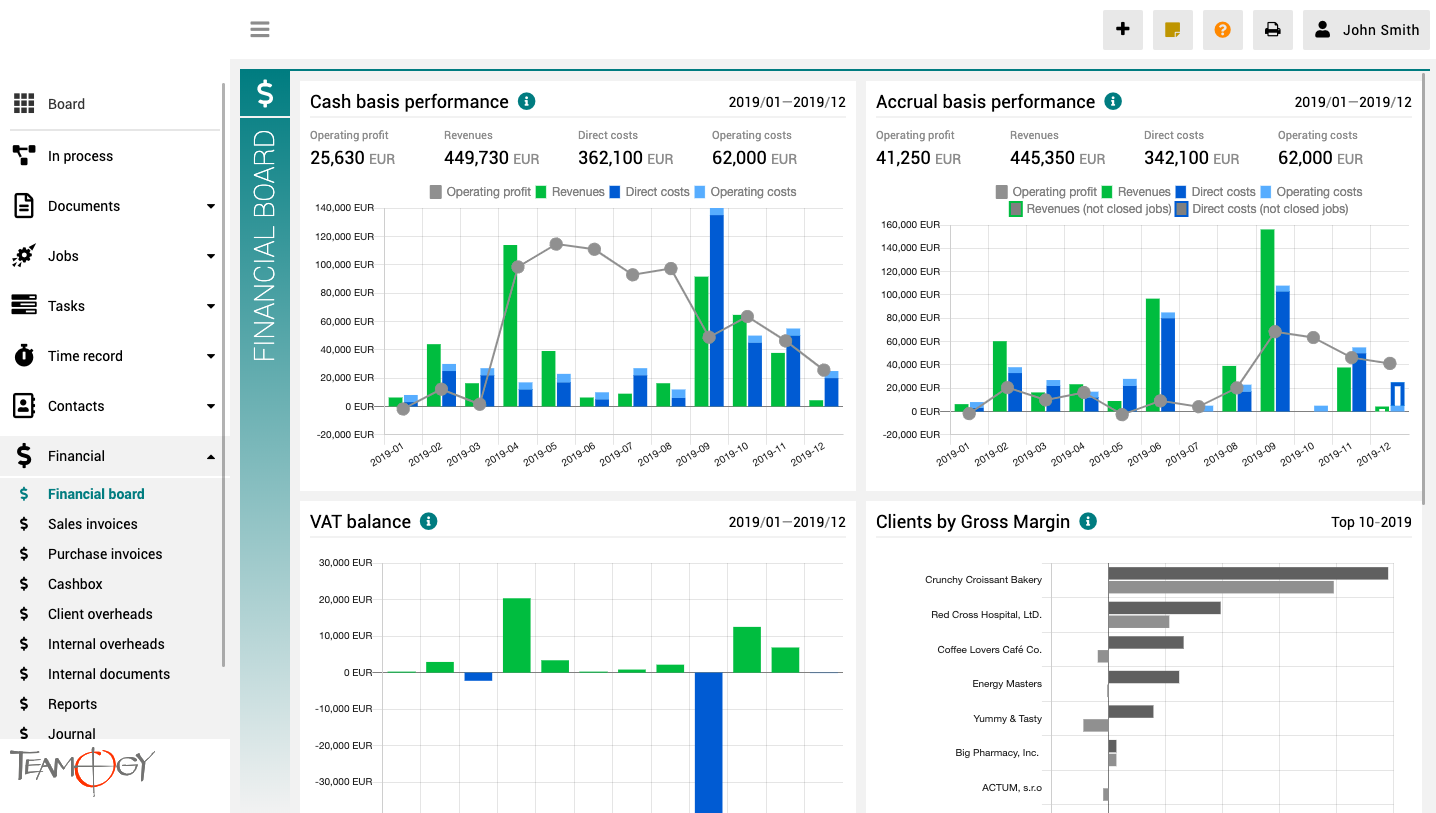
Pulpit finansowy to miejsce, które zapewnia wyraźny obraz całej agencji. Zawiera wykresy z kluczowymi wskaźnikami – ogólną ewolucję przychodów i kosztów agencji, zgodnie z aspektami finansowymi i jobu, różne poglądy na rentowność i wydajność klienta oraz raport VAT.
Wszystkie wykresy mają opcję wyboru zakresu dat, a dodatkowo raporty klientów mają również opcję monitorowania klientów najlepiej i najgorzej ocenianych.
Assignment of partial payment to finance document
Teamogy allows to assign bank transactions to financial documents.
Advanced work with bank transactions
See how you can work with Bank transactions in Teamogy.
Assignment of bank transactions to financial documents
Teamogy allows to assign bank transactions to financial documents.
Manual assignment of bank transactions to financial documents
Overview of all bank statements imported in Teamogy.
How to import bank statements in Teamogy
This is how to import bank statements in Teamogy.
How to activate and set up bank statements in Teamogy
This is how to activate the functionality of importing and processing bank statements in Teamogy.
Bank statements – how it works in Teamogy
Teamogy allows you to import bank statements in different formats and allocate each row of bank statement to relevant financial document.
Version 3.10
What is new in Teamogy? Check the newest Release notes.

3 fees for summer clients
Enjoy our contest
The Back Button and Search Retention
Back Button And Filter Retention 1. Opening in Modal window If you use filters in the views for better searching, open document in a smaller window - Modal (one click). When you close the window, you will be left with the search results. 2. Opening Teamogy record in...
Get in Touch
If you still have any questions or need further assistance, feel free to contact Teamogy support. You can use Online chat (inside the Teamogy or anywhere on www.teamogy.com in bottom right corner) and you will receive a prompt reply.