Todos tus datos
clave en un solo sistema
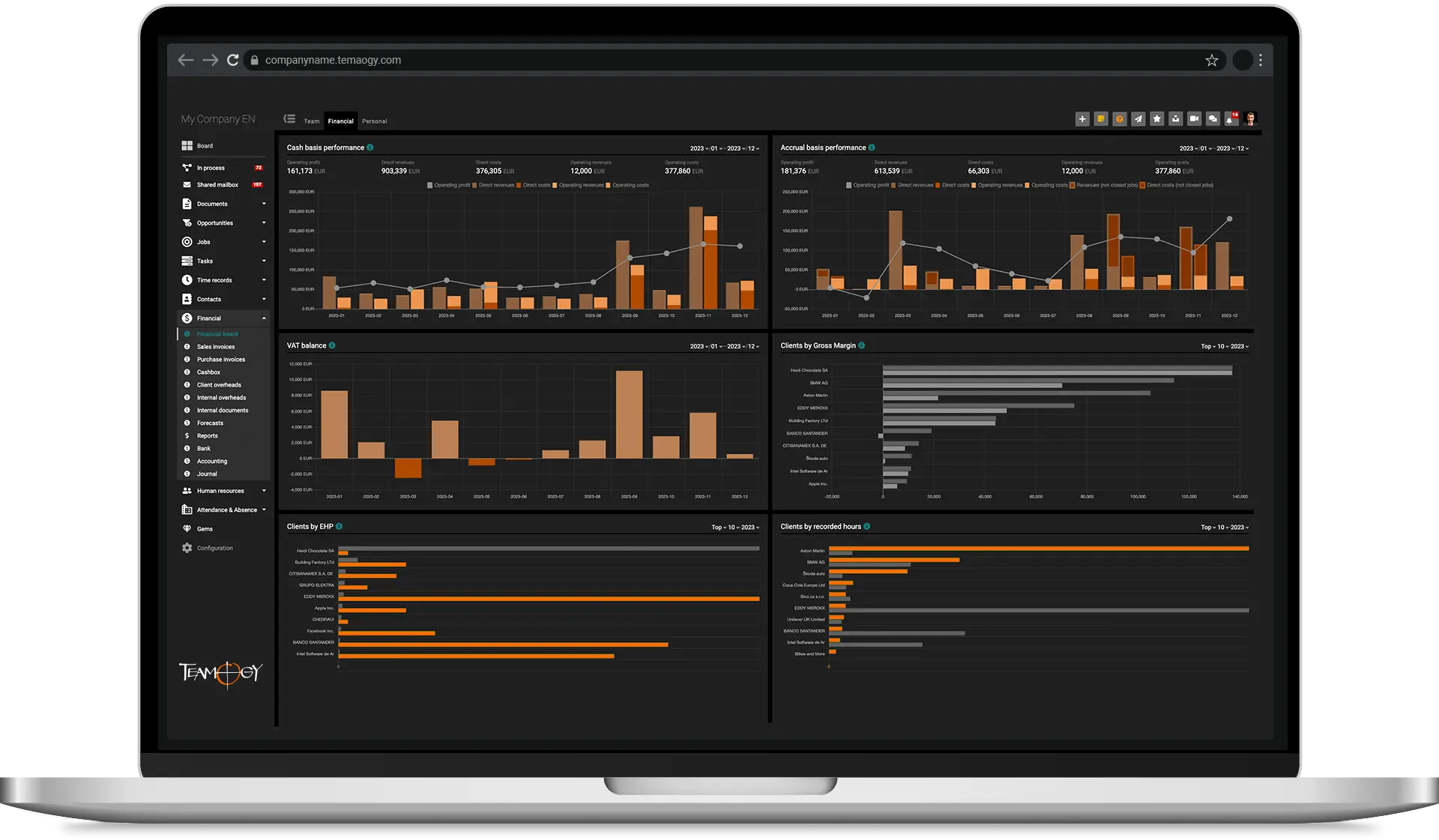
Un sistema moderno en la nube para la gestión empresarial, finanzas, gestión de proyectos, colaboración en equipo y comunicación.
Haz negocios, no caos
Dedica tu tiempo y energía a tus clientes, tu equipo y la misión para la que se creó tu empresa.
Adapta Teamogy a tus necesidades únicas y deja que crezca junto a tu negocio.
Mantén tus datos interconectados y evita perder tiempo en gestiones innecesarias.
Obtén una visión completa de tu empresa, en todo momento y sin preguntas.
Miles de usuarios en todo el mundo confían en Teamogy cada día.



















Construye una gran empresa
Los datos organizados de tu empresa aumentan su valor. Procesos claros y una buena estructura crean un entorno donde los profesionales quieren trabajar.
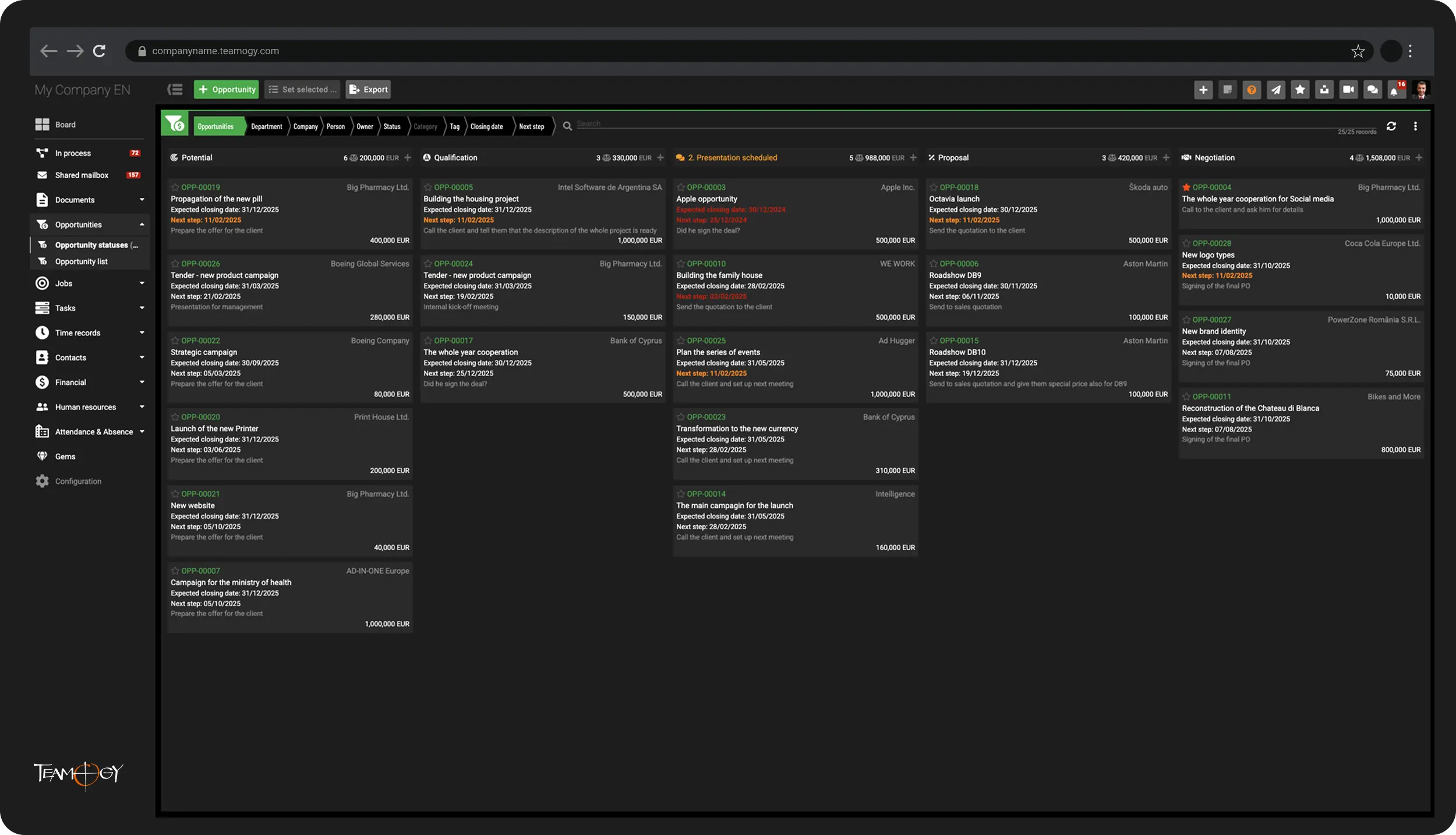
Nuevo negocio / CRM
Maximiza cada oportunidad de venta
Consigue nuevos negocios y gana licitaciones con claridad. Descubre el potencial financiero de cada oportunidad y planifica correctamente los próximos pasos. Mantén toda la comunicación relacionada con cada oportunidad organizada en un solo lugar.
Gestión de proyectos
Gestiona proyectos de forma eficiente—con la rentabilidad adecuada.
Toma el control total de tus proyectos en tiempo real, desde la cotización y la ejecución hasta la facturación. Optimiza la rentabilidad de cada proyecto con precisión y transparencia.
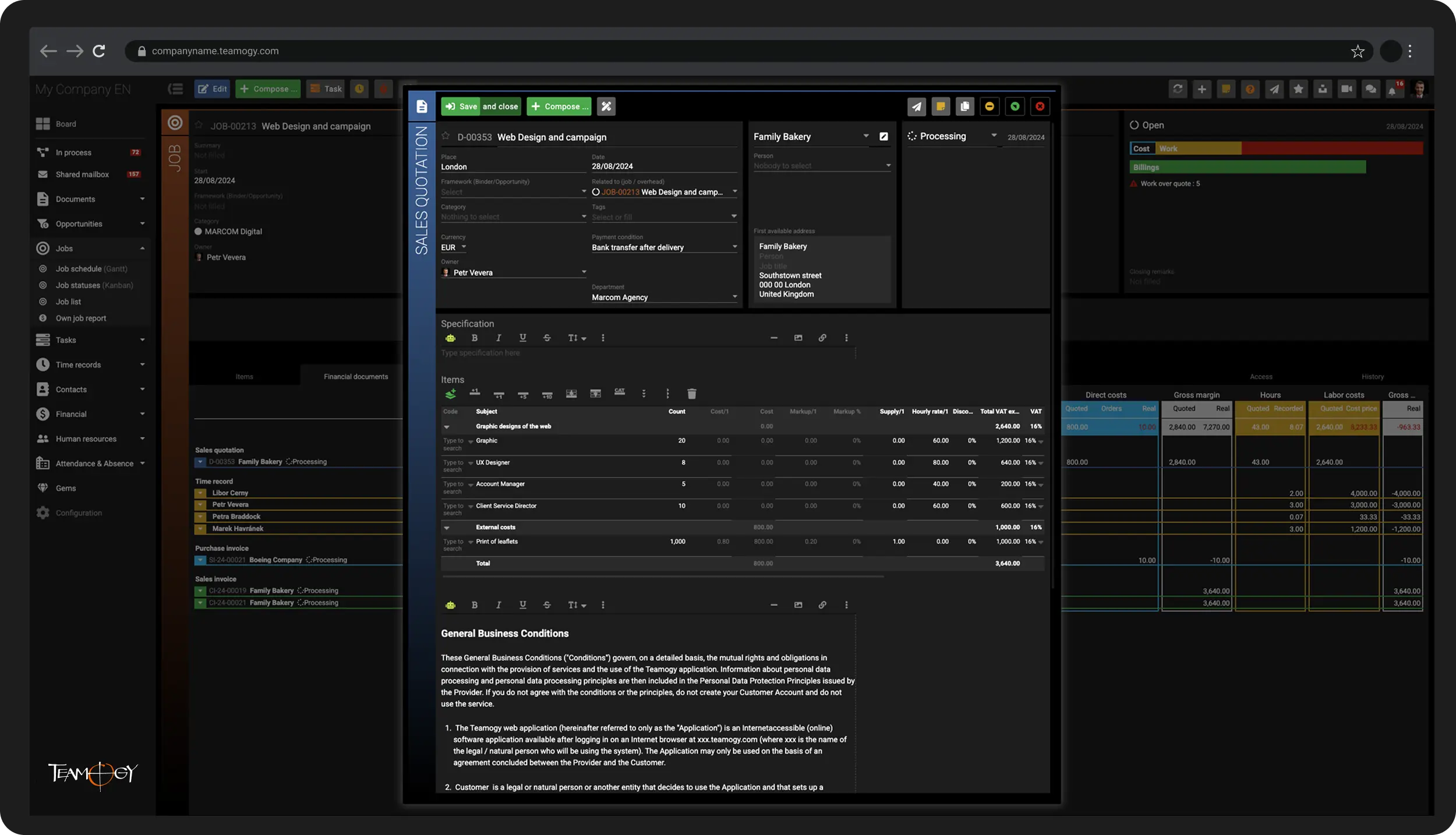
Gestión de proyectos
Gestiona proyectos de forma eficiente—con la rentabilidad adecuada.
Toma el control total de tus proyectos en tiempo real, desde la cotización y la ejecución hasta la facturación. Optimiza la rentabilidad de cada proyecto con precisión y transparencia.
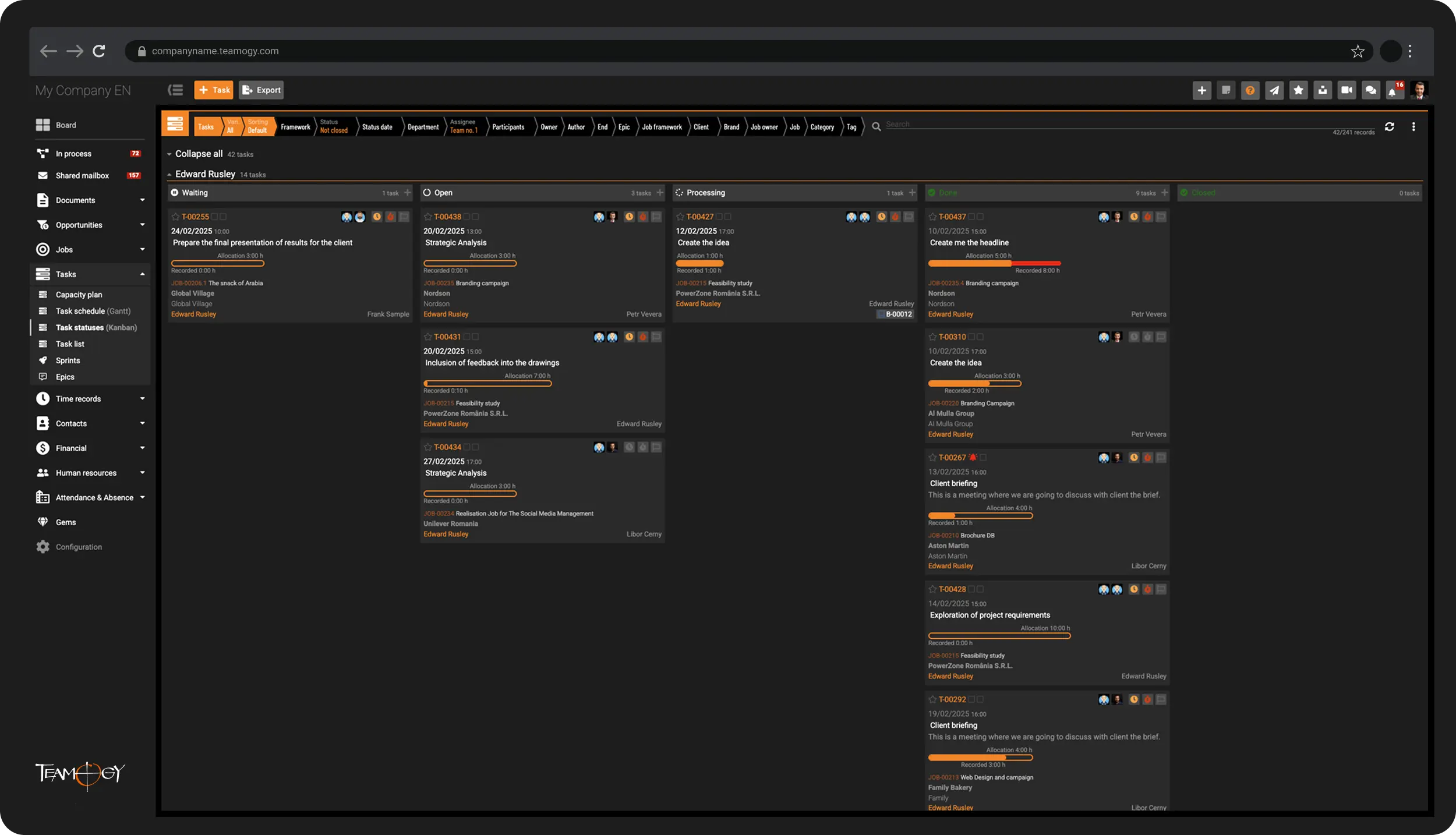
Colaboración en equipo
Visibilidad total sobre quién trabaja en qué—con acceso fácil a la información de cada tarea.
Mantén el control de la carga de trabajo del equipo y brinda a todos acceso rápido a la información que necesitan para completar sus tareas de manera eficiente.
Comunicación
Unifica diferentes canales de comunicación en una sola plataforma inteligente
Comparte y guarda información clave de diversos canales de comunicación—de forma permanente y accesible—para los miembros adecuados del equipo.
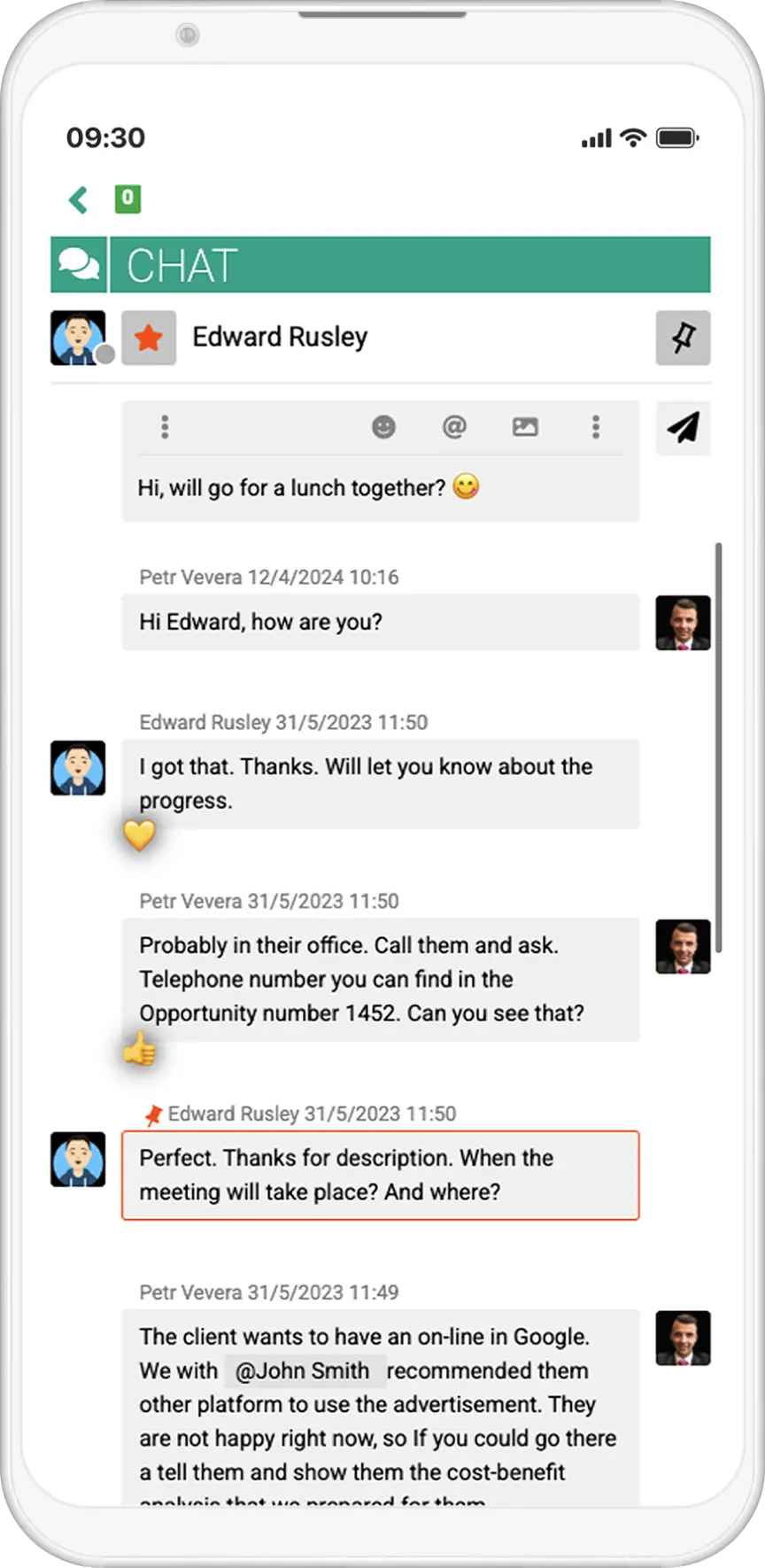
Comunicación
Unifica diferentes canales de comunicación en una sola plataforma inteligente
Comparte y guarda información clave de diversos canales de comunicación—de forma permanente y accesible—para los miembros adecuados del equipo.
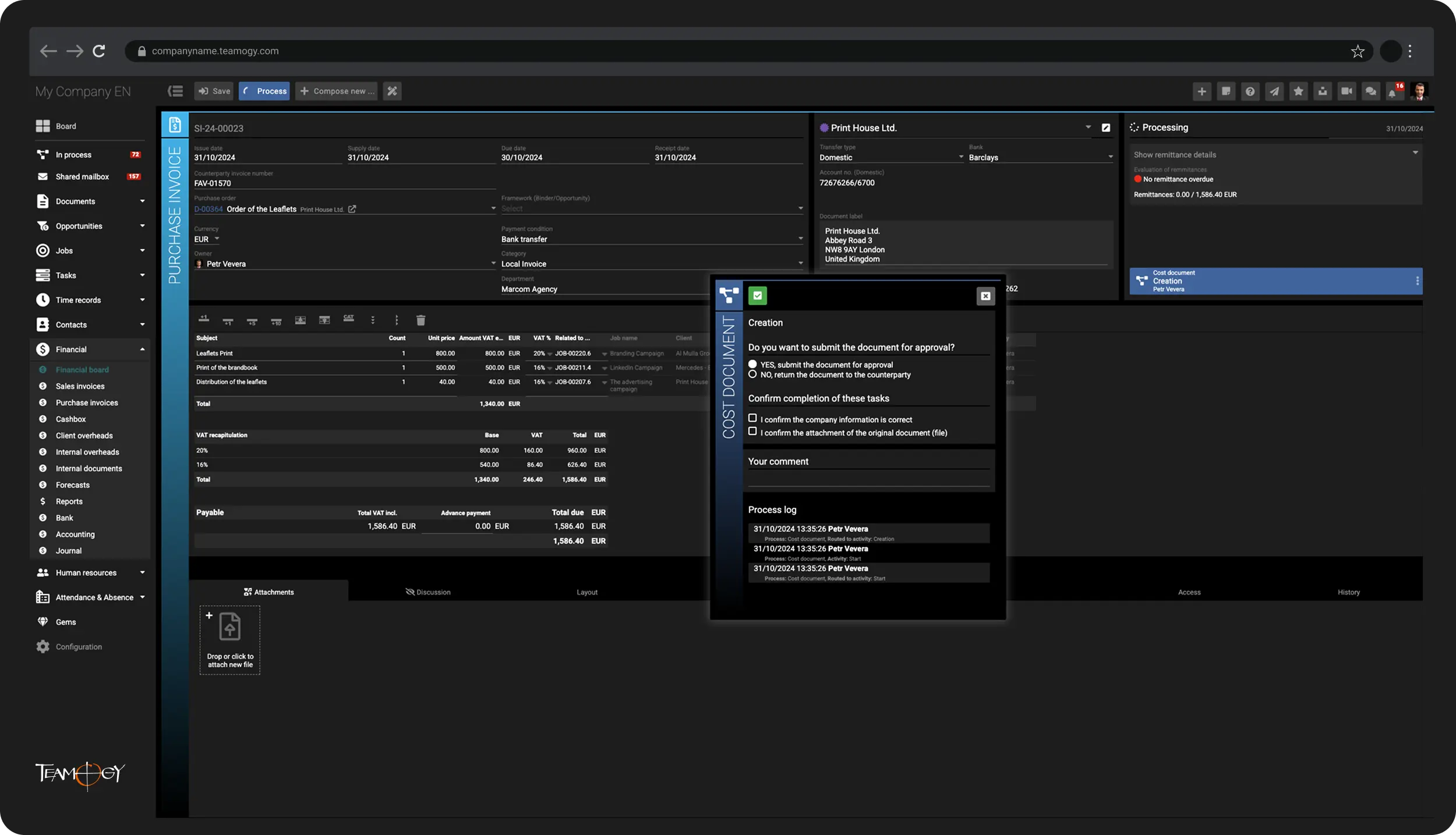
Finanzas
Detén las fugas innecesarias de dinero
Gestiona todos los documentos financieros directamente en Teamogy y toma el control total de las finanzas de tu empresa.
Informes
Obtén información sobre la rentabilidad de proyectos, costes internos y estado de resultados de tu empresa—en cualquier momento y lugar.
Accede tanto a una visión general desde las alturas como a detalles en profundidad en un solo sistema: solo elige la perspectiva que necesites en Teamogy.
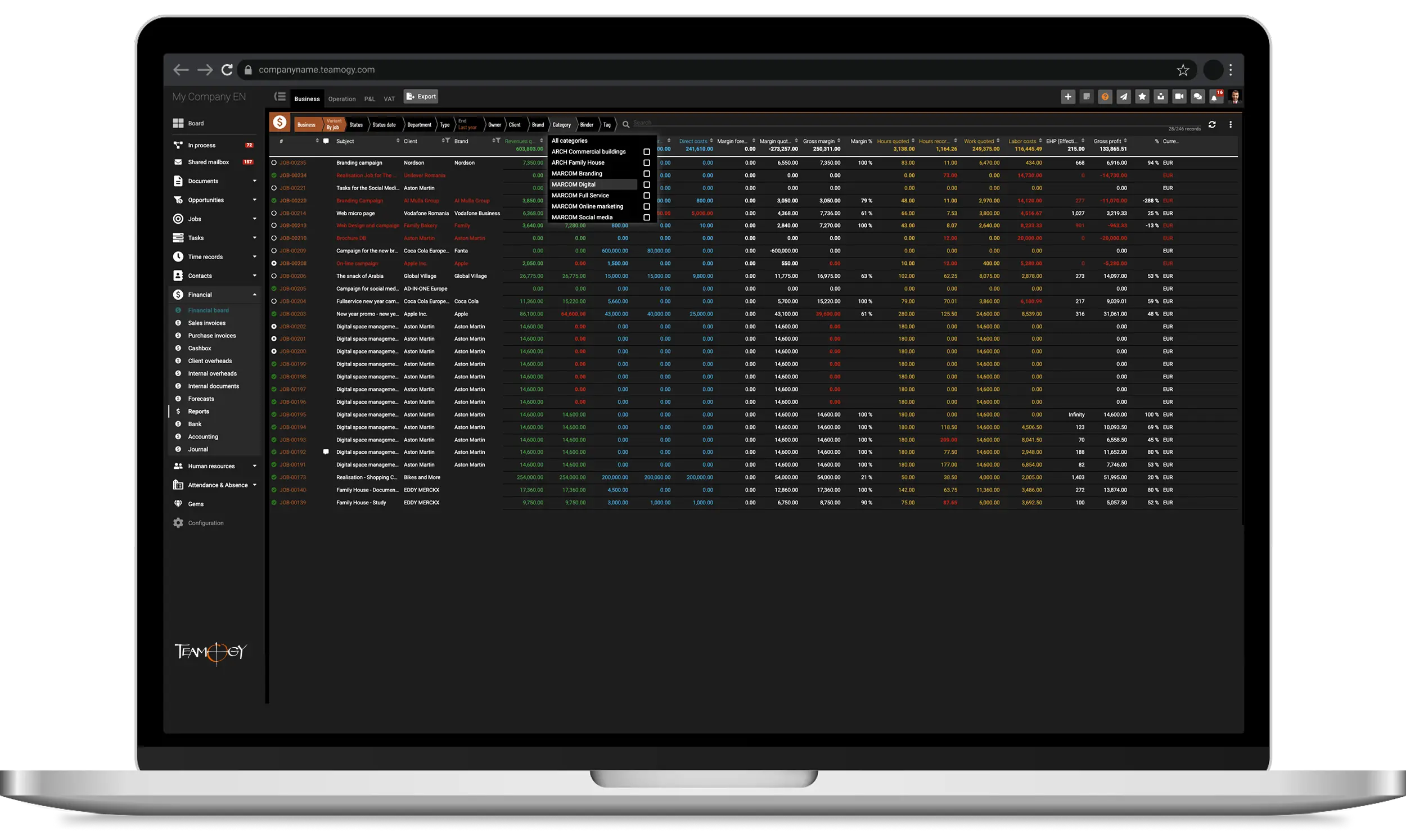
Informes
Obtén información sobre la rentabilidad de proyectos, costes internos y estado de resultados de tu empresa—en cualquier momento y lugar.
Accede tanto a una visión general desde las alturas como a detalles en profundidad en un solo sistema: solo elige la perspectiva que necesites en Teamogy.
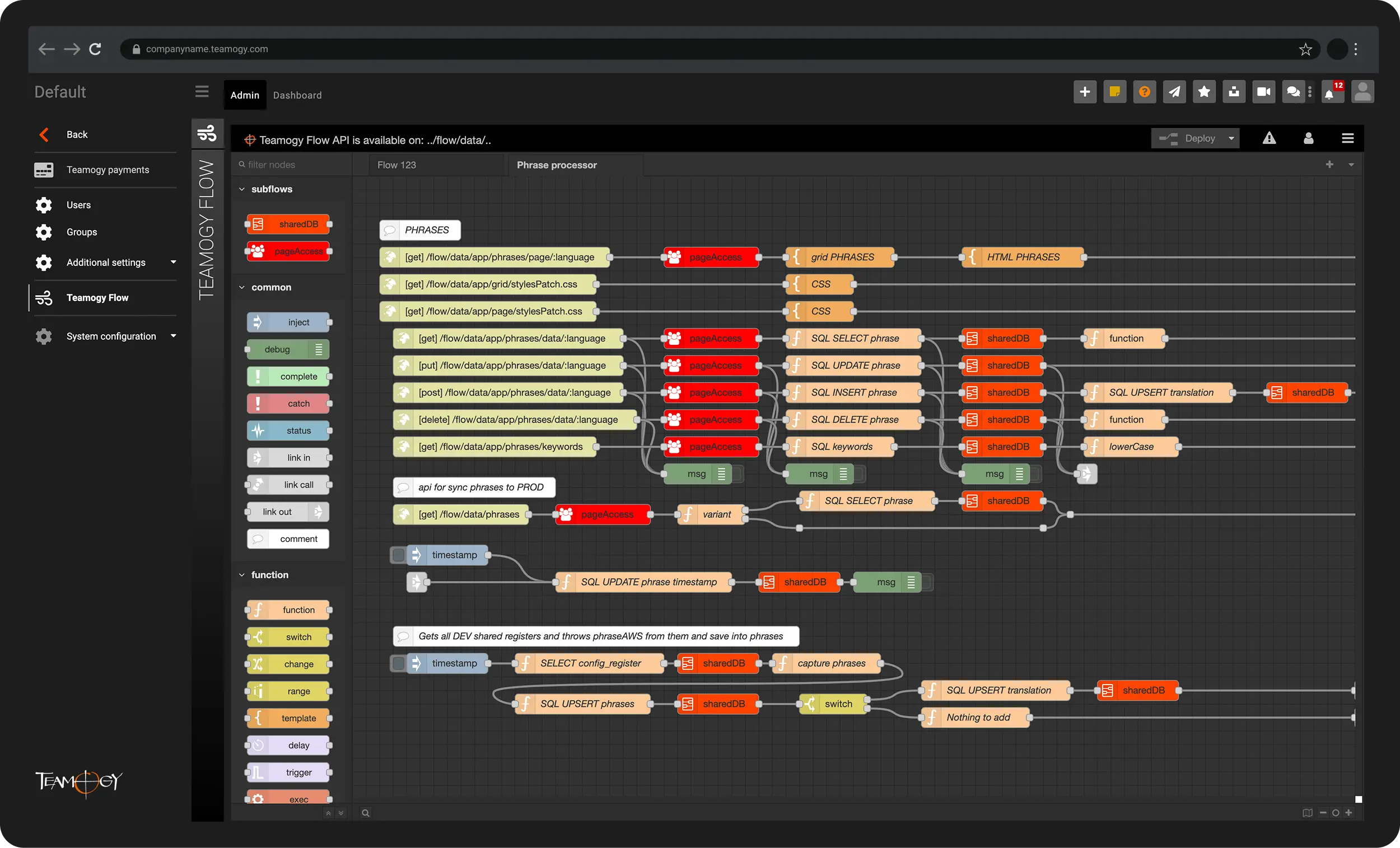
Integraciones
Integraciones y automatización de Teamogy para una máxima eficiencia y ahorro de tiempo
Teamogy es un sistema abierto con su propia API Pública, listo para integrarse con una amplia variedad de aplicaciones y servicios externos.






Solución todo en uno para gestionar toda tu empresa


Qué hace único a Teamogy
Teamogy combina 7 cualidades excepcionales que lo convierten en una solución verdaderamente única—altamente adaptable a las necesidades específicas de tu empresa. Es potente, flexible y un placer de usar.
Multilingüe y Localizado
Diseñado para equipos multilingües y requisitos regionales.
Con tipos de IVA predefinidos, monedas y plantillas de documentos, listo para usarse en más de 20 países, con configuración rápida para otros.
Una o Varias Unidades de Negocio
Gestiona varias empresas o sucursales dentro de una sola cuenta de Teamogy.
Ideal para holdings y redes—comparte contactos, RR. HH. e informes entre entidades para ahorrar tiempo y simplificar las operaciones.
Más de 50.000 personalizaciones
Separación clara entre la lógica de negocio y la capa de aplicación.
Teamogy se puede personalizar en profundidad—a nivel global o para cada unidad de negocio individual.
100 % Fácil de usar
Completo pero intuitivo.
Teamogy combina funciones potentes con una interfaz fácil de usar, elogiada por usuarios de todos los roles de la empresa.
Excelencia en la incorporación en 4 pasos
Desde el análisis hasta la formación y el soporte continuo.
Un proceso probado: configuración personalizada, incorporación del equipo y soporte al cliente de primer nivel, incluyendo chat en vivo y consultas personalizadas.
∞ Integraciones con Teamogy Flow
Ahorra tiempo con automatización sin interrupciones.
Integra Teamogy con tus herramientas o crea flujos de trabajo personalizados usando la plataforma visual Teamogy Flow.
Impulsado por las necesidades del usuario
En evolución constante con cada nueva versión.
Teamogy se desarrolla con una visión clara de producto y feedback del mundo real, mejorando continuamente según las necesidades cambiantes de los clientes.
Referencias destacadas


«La incorporación con Teamogy ha sido muy completa y fácil de seguir, lo que hizo que el inicio fuera una experiencia fluida. Estoy genuinamente entusiasmado de utilizar la plataforma: nos ofrece una visibilidad clara de la información financiera clave y garantiza que las personas adecuadas tengan acceso a lo que necesitan. Ahora podemos analizar exactamente dónde y cómo se está utilizando nuestro tiempo, obteniendo información valiosa sobre nuestro rendimiento diario. Además, Teamogy nos ayuda a optimizar nuestras operaciones al reemplazar varias otras plataformas y reunir todo en un ecosistema cohesivo.»
71 sucursales, más de 1.500 expertos en marketing en todo el mundo


„Yo siempre sé cómo la agencia está realmente trabajando. Excelente para tomar las decisiones correctas.“
Michal Richtr, CEO Dynamo Design
1–50 usuarios de Teamogy


„Necesitamos tener las finanzas y los proyectos en orden. Gracias a Teamogy, lo tenemos.“
50–100 usuarios de Teamogy

„Teamogy nos ha permitido obtener un resumen del desempeño de la compañía de forma simple y rapida. Manejamos trabajos y documentos relacionados incluyendo cotizaciones, ordenes y facturas de proveedores. Ahorramos tiempo y dinero gracias a Teamogy. Tenemos todo bajo control.“
Daniel Matula, Fundador, CAPEXUS
100–200 usuarios de Teamogy


„Ahora estimamos nuestro trabajo de forma mucho más realista.“
Pavla Neradová, Co-Founder, Studio Apaté
1–50 usuarios de Teamogy


„La rentabilidad de nuestros trabajos y proyectos individuales ha aumentado gracias a Teamogy. Me gusta.“
Irinel Ionescu, Fundador, AMPRO Branding agency
1–50 usuarios de Teamogy

„Me encanta la eficiencia y la claridad. Eso es Teamogy para mí. ¡Me gusta!“
50–100 usuarios de Teamogy
Reserva una reunión online
“Necesitamos tener las finanzas y los proyectos en orden. Y lo tenemos, gracias a Teamogy.”
Radek Maršík, CEO, FleishmanHillard Prague



Sobre la empresa
Sobre nosotros
Conviértete en socio
Producto
Sistema
Integraciones
Empecemos
Precios
Resources
Centro de soporte
Manuales
Notas de la versión
Inicio fácil
Blog
© AD-IN-ONE.com
Términos y condiciones
Protección de datos personales
Procesamiento de datos personales