
About Financial Board
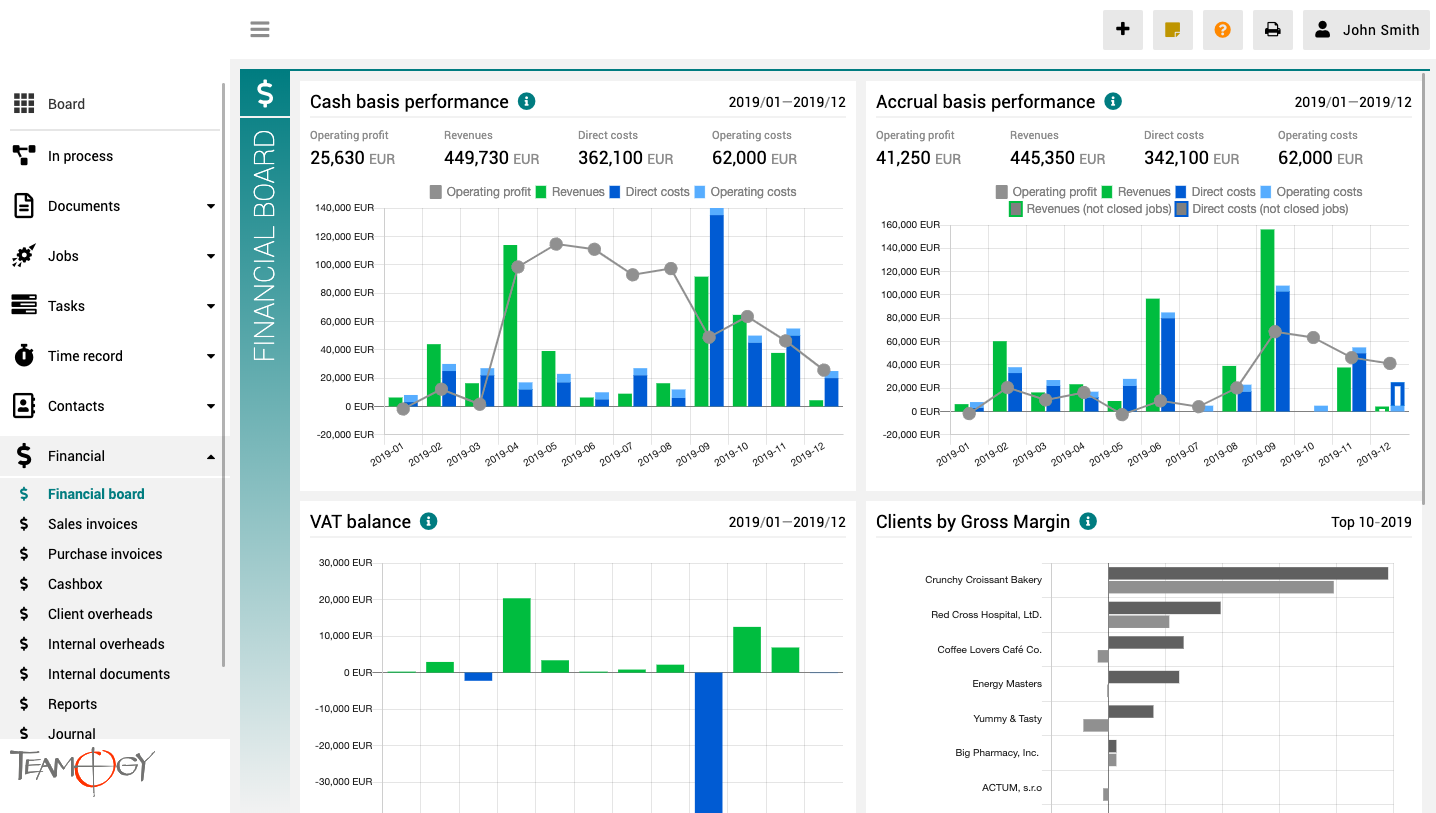
The finance board is a place that provides a clear view of the entire company. It contains charts with key indicators – overall evolution of revenues and costs of the company, according to financial and Job aspects, various views on client profitability and efficiency, and VAT report.
All charts have the option to select a date period while client reports also have the option to monitor the best and worst ranked clients.
Access Rights
Vat A value-added tax (VAT) is a consumption tax placed on a product or service. We will set up a default VAT rates for you based on your country. VAT rates will be ready for you at the beginning of using Teamogy. We calculate with case you would like to add...
Sales Invoice Details
Sales Invoice Details Each Sales invoice includes the following data and information: Date of Issue The date when the invoice is issued. It’s entered automatically but the date can be adjusted. The date format is based on your regional settings Date of Supply The date...
Logo
Logo Every our Client could customize Teamogy. You could also change a logo. How to do it? 1. In the left navigation menu unroll Configuration. 2. Click on Register. 3. Use breadcrumb Main key. 4. Choose LOGO. 5. Now open Logo. In the column Ownership should...
Change VAT
Change VAT A value-added tax (VAT) is a consumption tax placed on a product or service. We will set up a default VAT rates for you based on your country. VAT rates will be ready for you at the beginning of using Teamogy. We calculate with case you would like to add...
Add New User
Add new User 1. In the left navigation menu, select unroll Configuration. 2. Click on Users. 3. Click on New User.4. Complete all details. Mandatory fields are red underlined (can be different, depends on company’s settings). Draft Use in case you want to first add a...
Ledger
Reports 1. In the left navigation menu unroll Financial. 2. Click on Reports. Now, you are in the view Reports. It is a overview of profitability the Job. You could compare quoted values with real values. If your Job was non profit, Teamogy will mark these...
About Reports
About ReportsReports are a numerical representation of your business performance. They show how much you invoice clients, how much your Suppliers invoice you, and how your people spend time on Jobs or Internal Overheads. You can track and compare all of the above with...
Create a New Client Overhead
Create a New Client OverheadYou have two options how to create a new Client Overhead. First is available when you have sufficient rights for Financial section. The second is suitable once you do not have full rights to Financial section. Create a new Client Overhead...
Create a New Internal Overhead
Create a New Internal OverheadYou have two options how to create a new Internal overhead. First is available when you have sufficient rights for Financial section. The second is suitable once you do not have full rights to Financial section. Create a new Internal...
New Cash Payment
New Cash Payment 1. In the left navigation menu unroll Financial. 2. Click on Cashbox. 3. Click on New Voucher. 4. Choose New Cash Payment.4. Choose Bill Reimbursement. Pair Purchase Invoice to the relevant Job. If you did right, you will see the value of Purchase...
Get in Touch
If you have problem or need further assistance, do not hesitate contact Teamogy Support. Use online chat (inside Teamogy or everywhere on www.Teamogy.com in the lower right corner) and you will get prompt reply.