
About Financial Board
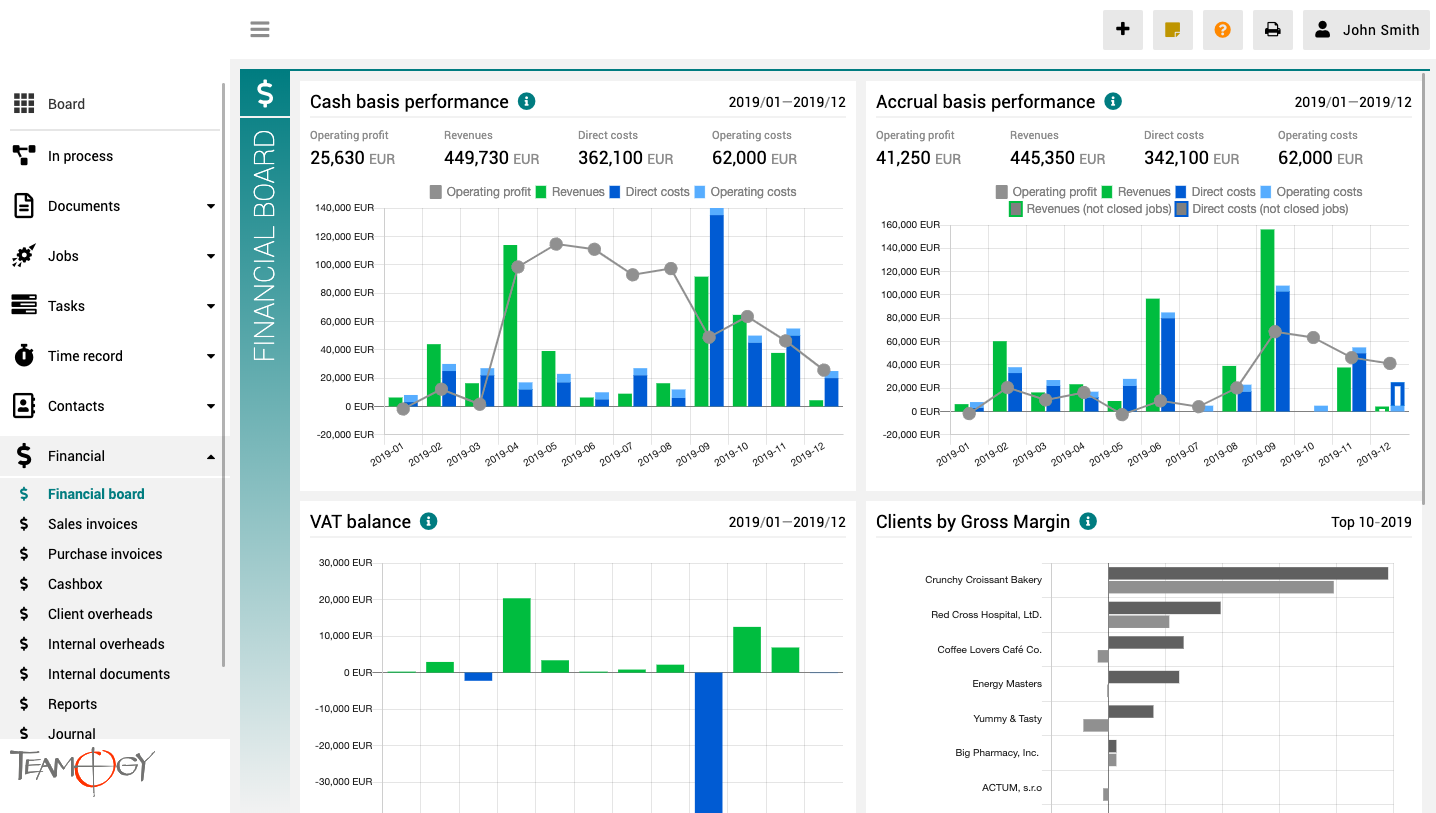
The finance board is a place that provides a clear view of the entire company. It contains charts with key indicators – overall evolution of revenues and costs of the company, according to financial and Job aspects, various views on client profitability and efficiency, and VAT report.
All charts have the option to select a date period while client reports also have the option to monitor the best and worst ranked clients.
About Documents
About DocumentsThe Teamogy system will help you to manage the control of all your documents, from your first contact with a client, to writing meeting notes, to creating a quotation for the client, to filling the signed contract. You can create and store all important...
Find The Company
Find The Company1. In the left navigation menu, scroll Contacts. 2. Click on the Companies view.3. Type at least first three letters from Company name and press enter. There are more options, how to find the company. You could write three last letters from company...
About Contacts
About ContactsContacts is the place to manage a large number of your business contacts and their details. Contacts in the Teamogy system are divided into five components: Company, Persons, Brands, Suppliers and Clients. In the Company view, you can see the list...
Print Layout
Print LayoutThis manual will show you how to set up a print layout at documents. You can apply this manual to all elements of Teamogy. 1. In the left navigation menu unroll Documents. 2. Click on My Documents or All Documents. 3. Click on New document or choose...
Statuses
Statuses Any type of record, Documents, Jobs, Tasks, Invoices…, in Teamogy can have its own set of statuses, which help you to easily see the actual record progress. Statuses can be assigned manually or they are driven by an automatic approval procedure (depending on...
Categories
CategoriesCategories help you to sort your records in Teamogy. In the system default settings, there are few predefined categories, which can be easily changed /expanded for every type of record in Teamogy. If you want to choose category, check the GIF below. This...
New Contract
New Contract1. In the left navigation menu, select unroll Documents. 2. Click on My Documents or All Documents. 3. Click on New document. 4. Choose Contract.5. Complete all details. Mandatory fields are red underlined (can be different by company’s settings). 6....
New Meeting Report
New Meeting Report1. In the left navigation menu, select unroll Documents. 2. Click on My Documents or All Documents. 3. Click on New document. 4. Choose Meeting report.5. Complete all details. Mandatory fields are red underlined (can be different by company’s...
New Purchase Order
New Purchase Order1. In the left navigation menu, select unroll Documents. 2. Click on My Documents or All Documents. 3. Click on New document. 4. Choose new Purchase order.5. Complete all details. Mandatory fields are red underlined (can be different by company’s...
New Sales Quotation
New Sales Quotation1. In the left navigation menu, select Unroll Documents. 2. Click on My Documents or All Documents. 3. Click on New document. 4. Choose Sales Quotation.5. Complete header details. Mandatory fields are red underlined (can be different from the...
Get in Touch
If you have problem or need further assistance, do not hesitate contact Teamogy Support. Use online chat (inside Teamogy or everywhere on www.Teamogy.com in the lower right corner) and you will get prompt reply.