
O Pulpicie finansowym
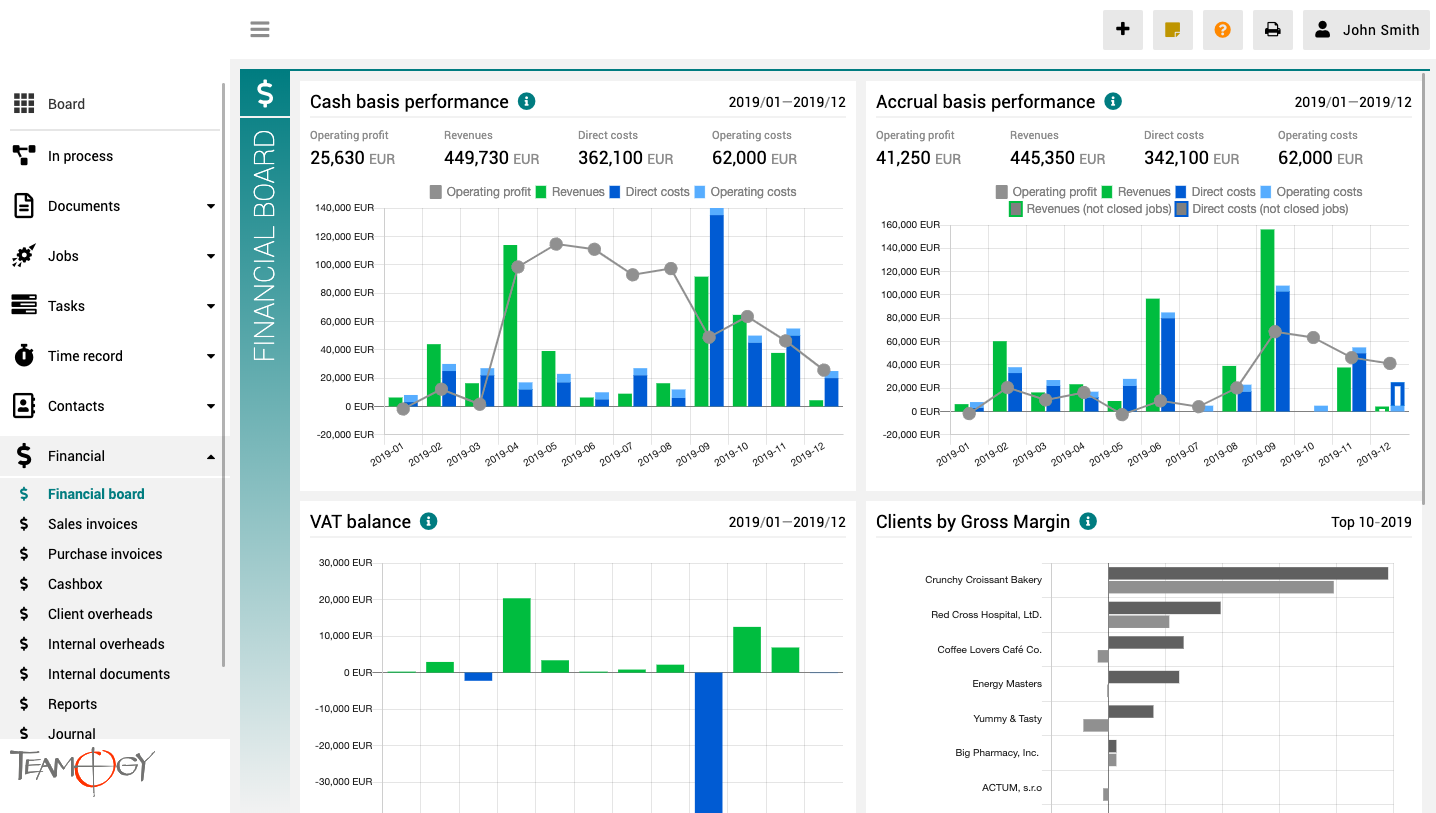
Pulpit finansowy to miejsce, które zapewnia wyraźny obraz całej agencji. Zawiera wykresy z kluczowymi wskaźnikami – ogólną ewolucję przychodów i kosztów agencji, zgodnie z aspektami finansowymi i jobu, różne poglądy na rentowność i wydajność klienta oraz raport VAT.
Wszystkie wykresy mają opcję wyboru zakresu dat, a dodatkowo raporty klientów mają również opcję monitorowania klientów najlepiej i najgorzej ocenianych.
Version 3.2
What is new in 3.2 version?
Attendance, changes in user area and Gems.
Version 3.1
What is new in 3.1 version?
Text editor, new version of task planner, mentions
Teamviewer
Teamviewer - remote control There are some problems that we need to fix from your PC or Mac. For this situations there is Teamviewer. 1. Go to the website of Teamviewer, click here. 2. Click on Download. 3. Choose your operating system. 4. Download and install it. 5....
Editing in Teamogy
Editing in Teamogy In current Teamogy’s version there are two ways how to activate edit mode on documents. First option is to activate the edit mode by the EDIT button. The second way is double-clicking. Double-click anywhere in the document to activate EDIT...
Groups
GroupsEach Teamogy user belongs to certain groups. These groups affect what rights the user has in the system. What views he sees, what he can modify in them, what actions he can perform in the system, etc. So our groups are actually what determines rights in Teamogy....
About Subtasks
O dílčích úkolechDílčí úkoly jsou součástí úkolu. Jsou způsob, jak rozdělit jeden úkol mezi více dílčích úkolů pro více lidí zahrnující jejich vlastní časovou alokaci. Z hlavního úkolu budete mít přehled o všech dílčích úkolech a jejich aktuálním stavu. Dílčí úkoly...
New Subtask
Create a Sub-task1. Open the Task for which you want to create a Sub-task. 2. Click on Sub-task. 3. Complete all Mandatory details (can be different, depends on company’s settings). 4. Press SAVE.Below we describe the Sub-tasks and their values in the main Task. PART...
New Absence
New AbsenceThe simplest and fastest way for creating a new Absence is to use the Quick Button. 1. Click on the Quick Button in the top corner of the screen. 2. Choose Absence request. Check the GIF below on how to create an Absence by Quick Button.3. Complete All...
About Subtask
About Sub-taskSub-tasks are part of a Task. They are the way to divide one task into multiple Tasks for more people including their own time allocation. You will still have overview from the main Task to each Sub-tasks progress. Sub-tasks reduce original Task...
About Absence
About AbsenceThis functionality allows the company to plan various types of Absences, including its approval. Users can apply for vacation, home office, and other types of Absences. Absence requests may also have an approval process – the most common is when the...
Get in Touch
If you still have any questions or need further assistance, feel free to contact Teamogy support. You can use Online chat (inside the Teamogy or anywhere on www.teamogy.com in bottom right corner) and you will receive a prompt reply.