
O Pulpicie finansowym
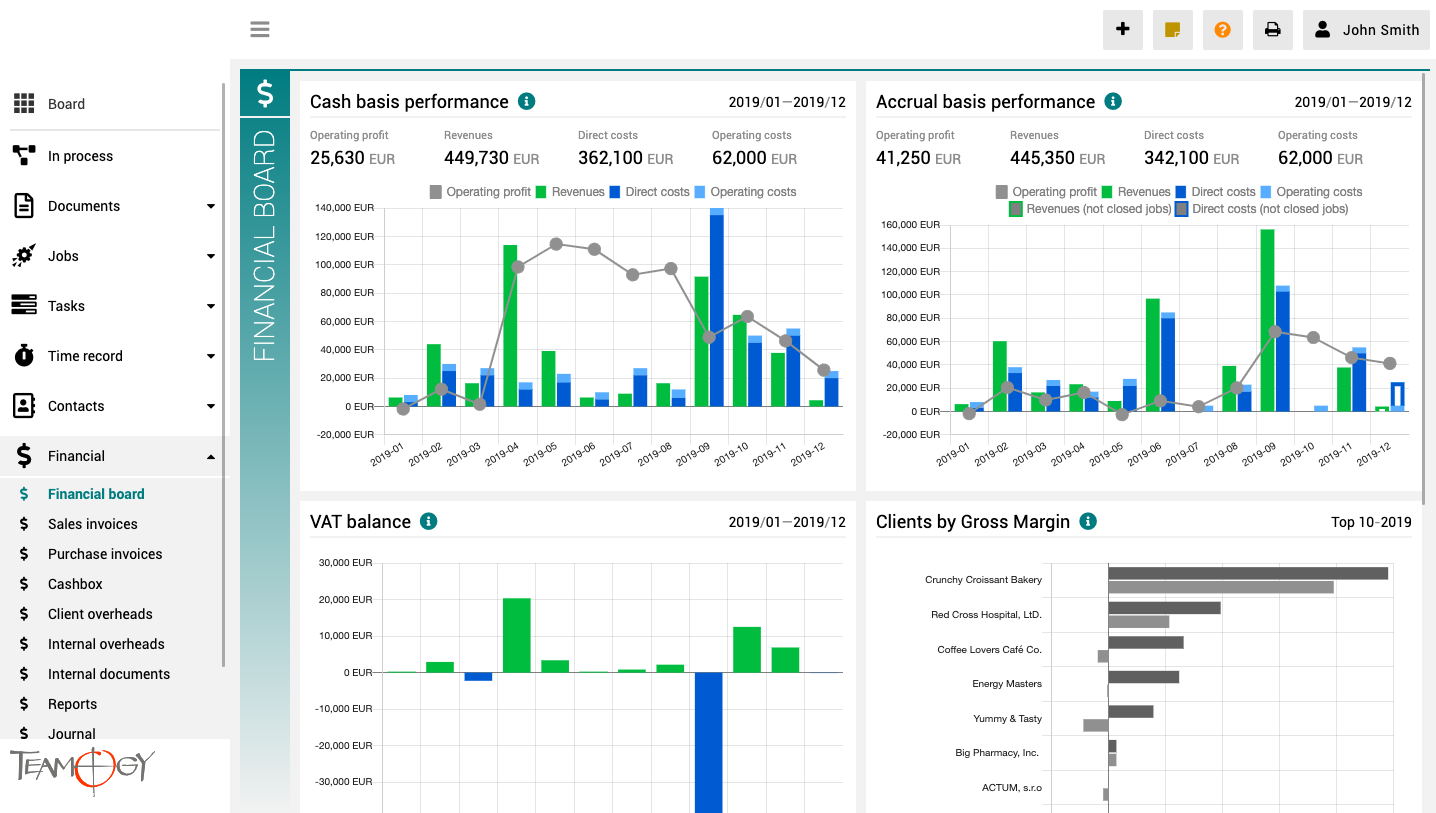
Pulpit finansowy to miejsce, które zapewnia wyraźny obraz całej agencji. Zawiera wykresy z kluczowymi wskaźnikami – ogólną ewolucję przychodów i kosztów agencji, zgodnie z aspektami finansowymi i jobu, różne poglądy na rentowność i wydajność klienta oraz raport VAT.
Wszystkie wykresy mają opcję wyboru zakresu dat, a dodatkowo raporty klientów mają również opcję monitorowania klientów najlepiej i najgorzej ocenianych.
Nuevo pago en efectivo
Nuevo pago en efectivo 1. En el menú de navegación izquierdo, despliegue Finanzas. 2. Haga clic en Caja. 3. Haga clic en Nuevo comprobante. 4. Seleccione Nuevo pago en efectivo.4. Seleccione Reembolso de factura. Vincule la Factura de compra al Trabajo...
Nuevo crédito de caja
Nuevo crédito de caja 1. En el menú de navegación izquierdo, despliegue Finanzas. 2. Haga clic en Cashbox. 3. Haga clic en Nuevo comprobante. 4. Elija Nuevo crédito de caja.4. Elija Reembolso de factura. Vincule la factura de compra al proyecto correspondiente. Si lo...
New Cash bill reimbursement
New Cash bill reimbursement1. In the left navigation menu unroll Financial. 2. Click on Cashbox. 3. Click on New Voucher. 4. Choose Cash bill reimbursement. Pair Cash bill reimbursement to the relevant Job. If you did right (see here), you will see the value of Bill...
New Purchase Invoice from View
New Purchase Invoice from View1. In the left navigation menu unroll Financial. 2. Click on Purchase Invoices. 3. Click on Compose New. 4. Choose Purchase Invoice.5. Complete all details. Mandatory fields are red underlined (can be different by company’s settings)....
Create Sales Invoice From View
New Sales Invoice From View1. In the left navigation menu unroll Financial. 2. Click on Sales Invoices. 3. Click on Compose New and choose Sales Invoice.4. Complete all details. Mandatory fields are red underlined (can be different from company’s settings). Pair Sales...
Create Sales Invoice From Job
New Sales Invoice From Job1. In the left navigation menu unroll Jobs. 2. Click on Job schedule, Job statuses or Job list. 3. Choose and open the Job for which you would like to create a Sales Invoice. 4. Click on Compose new. 5. Choose Sales Invoice.Teamogy...
About Time Record
About Time RecordTime is the key asset of every company. Efficient time management of company employees and co-workers is crucial for the delivery of promised jobs and campaigns on time and also has a direct impact on company profit. A Time Record is a record of the...
New Time Record From Job
New Time Record From JobGenerating a Time Record directly from the Job is a great option for people working directly on the Job. Just use the button Time Record icon inside the Job and complete all the mandatory fields. Job details are completed automatically and you...
About Time Recorder
About Time RecorderThe Time Recorder is a visual tool for simple time recording and an overview of all recorded hours in daily, weekly, or monthly mode. It displays all recorded hours of the selected user in a selected time period. Empty columns with a yellow border...
How To Allocate Money
How To Allocate Money 1. Create Document (Sales Quotation, Purchase Order, Purchase Invoice, Timesheet, Bill Reimbursement) or Find it. 2. Complete all details. Mandatory fields are red underlined (can be different by company’s settings). 3. Pair element to a Job/...
Get in Touch
If you still have any questions or need further assistance, feel free to contact Teamogy support. You can use Online chat (inside the Teamogy or anywhere on www.teamogy.com in bottom right corner) and you will receive a prompt reply.