
O Pulpicie finansowym
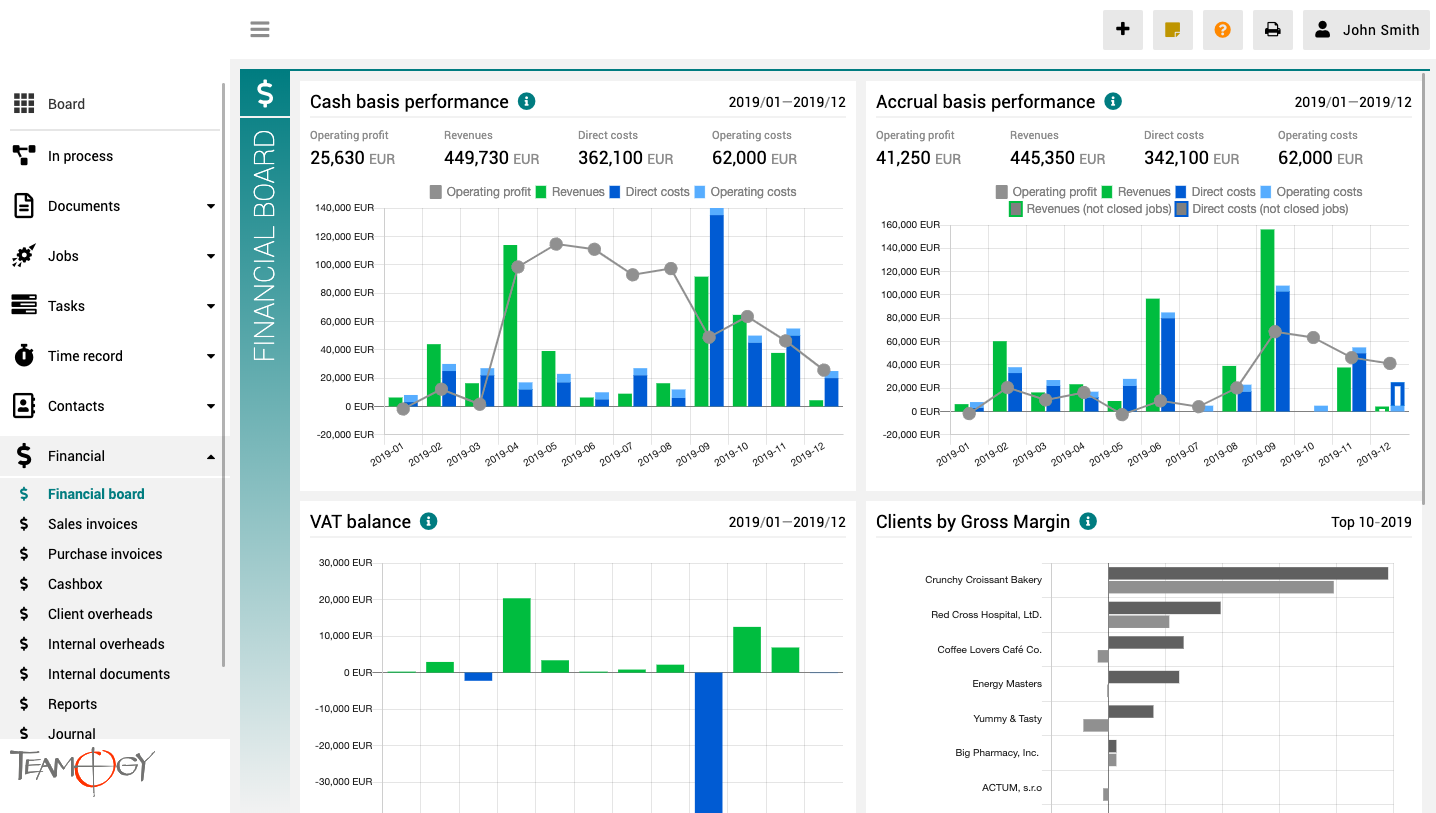
Pulpit finansowy to miejsce, które zapewnia wyraźny obraz całej agencji. Zawiera wykresy z kluczowymi wskaźnikami – ogólną ewolucję przychodów i kosztów agencji, zgodnie z aspektami finansowymi i jobu, różne poglądy na rentowność i wydajność klienta oraz raport VAT.
Wszystkie wykresy mają opcję wyboru zakresu dat, a dodatkowo raporty klientów mają również opcję monitorowania klientów najlepiej i najgorzej ocenianych.
Print Optimization
Print OptimizationRemove Headers and Footers If you do not like the default Teamogy Headers and Footers, we will show you how to disable it. 1. Find Document which you would like to Print out. 2. Click on the icon of the printer.3. Select unroll More Settings. 4. At...
Version 2.1
What's new in Teamogy 2.1 Release date: 2019-04-01 Improvements New options in Time report - Jobs, Tasks, Client Overheads, Internal Overheads Possibility to send Sticker to colleagues The "whisper" in Quotation, Sales and Supplier invoice, Task or Time Track...
New Time Record From Capacity Plan
New Time Record From Capacity PlanA Time Record can also be logged directly from the Capacity plan. It’s very useful for users that work on Tasks. Once a portion of the work is finished on a given Task, let’s get a record of the spent time. Click on the Task that you...
Create A Task From Job
Create A Task From Job1. In the left navigation menu unroll Jobs. 2. Click on Job Statuses or Job List and choose existing Job. 3. Click on Task.4. Complete All Details. Mandatory Details are red underlined (can be different by company’s settings). Start date the...
Capacity Plan – Layout
Capacity Plan - LayoutCapacity Plan is a visual overview of all Tasks assign to a person, team or the entire company. Action bar includes following options: 1. Choosing the person or team here you can choose the person or team. All Tasks for the person/team are...
About Task List
About Task ListTask List is an overview of all created Tasks, which can be sorted and filtered by various criteria. The most important criteria is the author of the Task or the responsible person for the Task. You can sort by: Assigned to me or participating in the...
About Tasks
About TasksManaging Tasks is a must-have for efficient time management. Release your tension and stress – have everything effectively planned, including deadlines. You can take your mind off everything that is already planned within Tasks. Enjoy a single place where...
Create A Task From View
Create A Task From View1. In the left navigation menu unroll Tasks. 2. Click on Capacity plan/ Task schedule / Task statuses / Task list - new task can be created from any one of those views. 3. Click on New Task.4. Complete All Details. Mandatory Details are red...
Capacity Plan – How It Works
Capacity Plan - How It WorksFirstly, start our manual by creating a new task. Here is a link on how to create new task. On the screen below you can see the default situation after a task creation. Let’s call these pieces of a chart, which are orange now, as a bead....
New Meeting Category
New Meeting CategoryYou, as intern Teamogy admin, could add more Meeting Category. How to do add more Meeting Category? 1. In the left navigation menu unroll Configuration. 2. Click on Register. 3. Use Breadcrumb Ownership and choose Shared. 4. Use Breadcrumb...
Get in Touch
If you still have any questions or need further assistance, feel free to contact Teamogy support. You can use Online chat (inside the Teamogy or anywhere on www.teamogy.com in bottom right corner) and you will receive a prompt reply.