
O Pulpicie finansowym
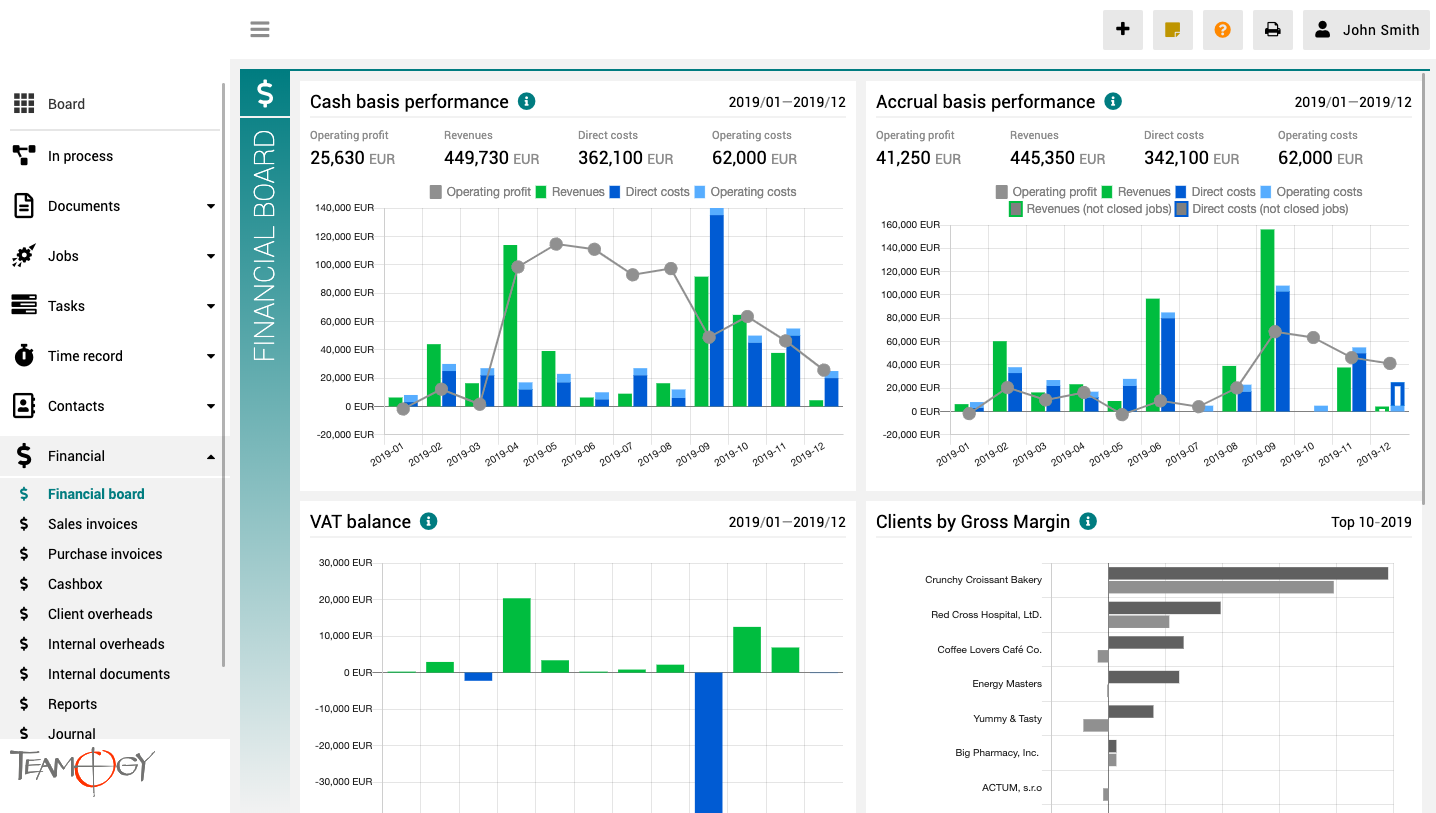
Pulpit finansowy to miejsce, które zapewnia wyraźny obraz całej agencji. Zawiera wykresy z kluczowymi wskaźnikami – ogólną ewolucję przychodów i kosztów agencji, zgodnie z aspektami finansowymi i jobu, różne poglądy na rentowność i wydajność klienta oraz raport VAT.
Wszystkie wykresy mają opcję wyboru zakresu dat, a dodatkowo raporty klientów mają również opcję monitorowania klientów najlepiej i najgorzej ocenianych.
New Document Category
New Document CategoryYou, as intern Teamogy admin, could add more Document Category. How to do add more Document category? 1. In the left navigation menu unroll Configuration. 2. Click on Register. 3. Use Breadcrumb Ownership and choose Shared. 4. Use Breadcrumb...
New Document Types
New Document TypesThese are the most used documents types that are predefined in Teamogy - Basic Document, Sales Quotation, Purchase Order, Contract, Meeting Report and any agency can start using them immediately. However, Teamogy is a very flexible system and adding...
Version 2.0
What's new in Teamogy 2.0 Release date: 2019-03-25 New major functionality Task management & capacity planning Improvements User's managers access rights policy - all managers of user can now access records created by the user Possibility to clone / copy...
Fast Actions
Fast ActionsThere is a powerful button for quick launch of most of the actions used in the system. 1. Click on the plus icon.2. Now choose action you would like use.Get in Touch If you have problem or need further assistance, do not hesitate contact Teamogy Support....
Access Rights
Vat A value-added tax (VAT) is a consumption tax placed on a product or service. We will set up a default VAT rates for you based on your country. VAT rates will be ready for you at the beginning of using Teamogy. We calculate with case you would like to add...
Sales Invoice Details
Sales Invoice Details Each Sales invoice includes the following data and information: Date of Issue The date when the invoice is issued. It’s entered automatically but the date can be adjusted. The date format is based on your regional settings Date of Supply The date...
Logo
Logo Every our Client could customize Teamogy. You could also change a logo. How to do it? 1. In the left navigation menu unroll Configuration. 2. Click on Register. 3. Use breadcrumb Main key. 4. Choose LOGO. 5. Now open Logo. In the column Ownership should...
Change VAT
Change VAT A value-added tax (VAT) is a consumption tax placed on a product or service. We will set up a default VAT rates for you based on your country. VAT rates will be ready for you at the beginning of using Teamogy. We calculate with case you would like to add...
Add New User
Add new User 1. In the left navigation menu, select unroll Configuration. 2. Click on Users. 3. Click on New User.4. Complete all details. Mandatory fields are red underlined (can be different, depends on company’s settings). Draft Use in case you want to first add a...
Ledger
Reports 1. In the left navigation menu unroll Financial. 2. Click on Reports. Now, you are in the view Reports. It is a overview of profitability the Job. You could compare quoted values with real values. If your Job was non profit, Teamogy will mark these...
Get in Touch
If you still have any questions or need further assistance, feel free to contact Teamogy support. You can use Online chat (inside the Teamogy or anywhere on www.teamogy.com in bottom right corner) and you will receive a prompt reply.