
O Pulpicie finansowym
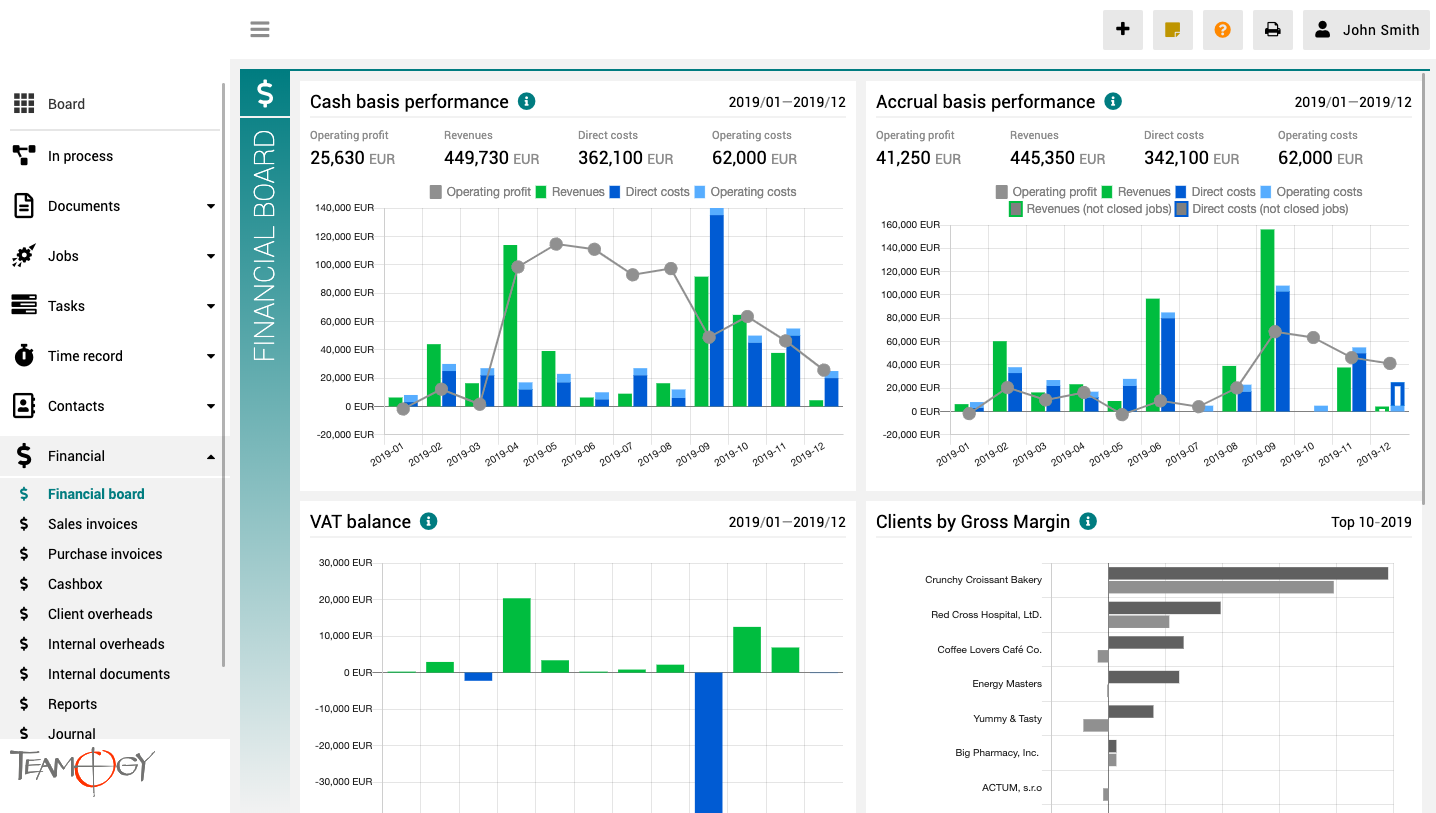
Pulpit finansowy to miejsce, które zapewnia wyraźny obraz całej agencji. Zawiera wykresy z kluczowymi wskaźnikami – ogólną ewolucję przychodów i kosztów agencji, zgodnie z aspektami finansowymi i jobu, różne poglądy na rentowność i wydajność klienta oraz raport VAT.
Wszystkie wykresy mają opcję wyboru zakresu dat, a dodatkowo raporty klientów mają również opcję monitorowania klientów najlepiej i najgorzej ocenianych.
Register Import
Import Register We need tools to do the agenda more faster. Import is one of these tools. When the environment is new, we need to set many settings here. That’s the reason why there is an register import. You just need to follow these steps to do it successfully: 1....
Creation of the Clan
Creation of the ClanIf you want to prepare new environment for the client, you have to create the new clan. Follow this guide. 1. Log in into the aio pro environment here. 2. Behind agency id in the address bar type /createclan Now you have to complete the following...
Teamviewer
Teamviewer - remote control There are some problems that we need to fix from your PC or Mac. For this situations there is Teamviewer. 1. Go to the website of Teamviewer, click here. 2. Click on Download. 3. Choose your operating system. 4. Download and install it. 5....
Modification of Client seleciton in Jobs
Modification of Client selection in Job We have a search of Companies in the job, which are usually your clients. Let’s show you, how to setup this search, how you want. 1. In the left navigation menu, unroll Configuration. 2. Click on Register. 3. Into the...
Job mandatory fields
Job mandatory fieldsWe have a lot of fields in the system that can be filled. In our Teamogy, however, you can set which fields you want to be mandatory and which are not. See the following instructions on how to set the mandatory fields. 1. In the left navigation...
Job status modification
Job status modificationWe have default statuses in Teamogy. It’s WAITING, OPEN, DONE, CLOSED anc CANCELLED. We can add another statuses. There is list of statuses, which are already entered into the system, but they are not used in the statuses of jobs. Please, use...
New Time Record Category
New Time Record Category We know for partners it is very difficult to fullfill wishes and needs of Clients. One of the needs is to add the Job Category. 1. Unroll Configuration. 2. Click on Register. 3. Search by Main Key - Type there CATEGORY.PRICE. 4. Open the...
Time track comment activation
Time record comment activationTime record comment is switched off in default. Follow these steps to activate it successfully: 1. In the left navigation menu, unroll Configuration. 2. Click on Register.3. Into the Breadcrumb Sub-Key type TIME.TRACK.COMMENT and choose...
Time track category activation
Time record category activationTime record category is switched off in default. Follow these steps to activate it successfully: 1. In the left navigation menu, unroll Configuration. 2. Click on Register. 3. Into the Breadcrumb Sub-Key type...
New card
New card Client will need to add his own card into the cashbox’s card’s operations. Follow these steps to add the card into Teamogy successfully: 1. In the left navigation menu, unroll Configuration. 2. Click on Register.3. Into the Breadcrumb Main-Key type...
Get in Touch
If you still have any questions or need further assistance, feel free to contact Teamogy support. You can use Online chat (inside the Teamogy or anywhere on www.teamogy.com in bottom right corner) and you will receive a prompt reply.