
Calendar
In this short manual, we will introduce the Calendar in Teamogy and explain what information it can display and how you can use it.
The Teamogy Calendar brings together events, planned work, absences and ToDos in one place. Each user can choose which types of records they want to display.
To view the calendar, in the left navigation menu, click Calendar. (1)
The Calendar is available in three views:
- Month – an overview of the entire month
- Week – a detailed overview of the selected week
- Day – a detailed schedule for a specific day
You can switch between the individual views in the upper part of the Calendar. (2)
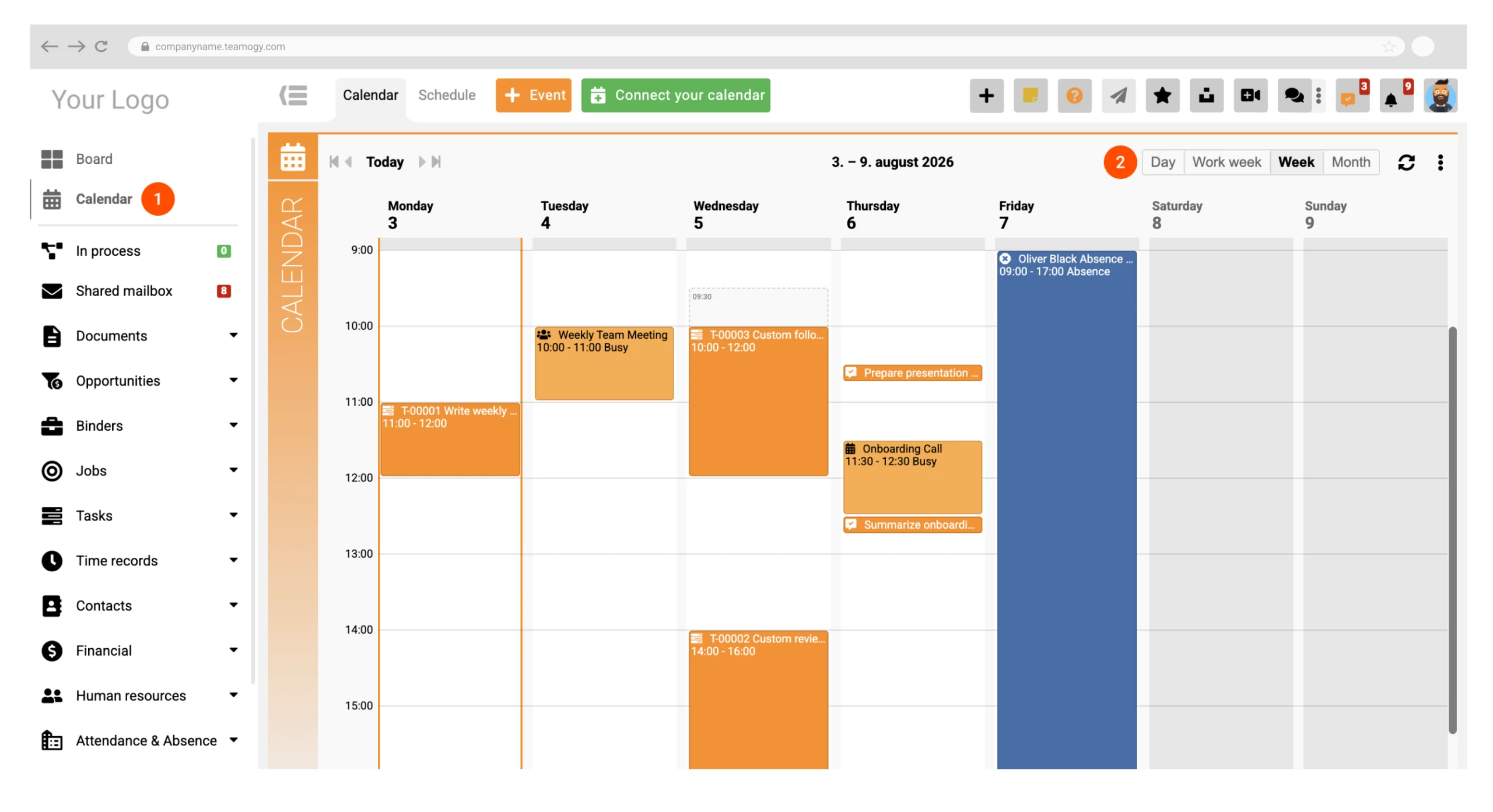
The Calendar supports the following types of records:
| Calendar Events |
Events created directly in the Teamogy Calendar, such as meetings, appointments or other scheduled activities. The Calendar can also display events synchronized from an external e-mail calendar. |
| Planned Work / Tasks |
Work on tasks that has been planned using the Capacity Plan can be displayed in the Calendar. This gives users a clear overview of when work on individual tasks has been scheduled. |
| Approved Absences | The Calendar can display the user’s approved absences, such as holidays or other types of leave. |
| ToDos |
ToDos with an assigned date can be displayed in the Calendar. If a specific time has also been entered, the ToDo is displayed at the corresponding time in the daily or weekly view. |
| Displaying Colleagues in the Daily View | In the daily Calendar view, you can add colleagues and display their events. |
| Private Events |
The Calendar respects the privacy settings of individual records. If an event is marked as Private, its details are displayed only to the owner of the event. Other users may see that the time is occupied, but they cannot view the private event details. |
| Event Participants |
Participants can be added to Calendar events. Invited participants can see the event in their Calendar,. |
| Recurring Events | Events can be set to recur automatically. |
The daily Calendar view can also be displayed in the Teamogy side panel. This gives you a quick overview of the current day without having to open the full Calendar.
The side panel may include the day’s events, planned work, absences and ToDos, depending on your Calendar settings. Each user can choose which types of records they want to display in the Calendar.
Detailed instructions for Calendar settings are provided in a separate guide.
Related articles:
- How to setup Caledar
- Viewing Colleagues’ Calendar Events
- How to create an Event
- How to connect personal Calendar
Get in Touch
If you have problem or need further assistance, do not hesitate contact Teamogy Support. Use online chat (inside Teamogy or everywhere on www.Teamogy.com in the lower right corner) and you will get prompt reply.