
O Pulpicie finansowym
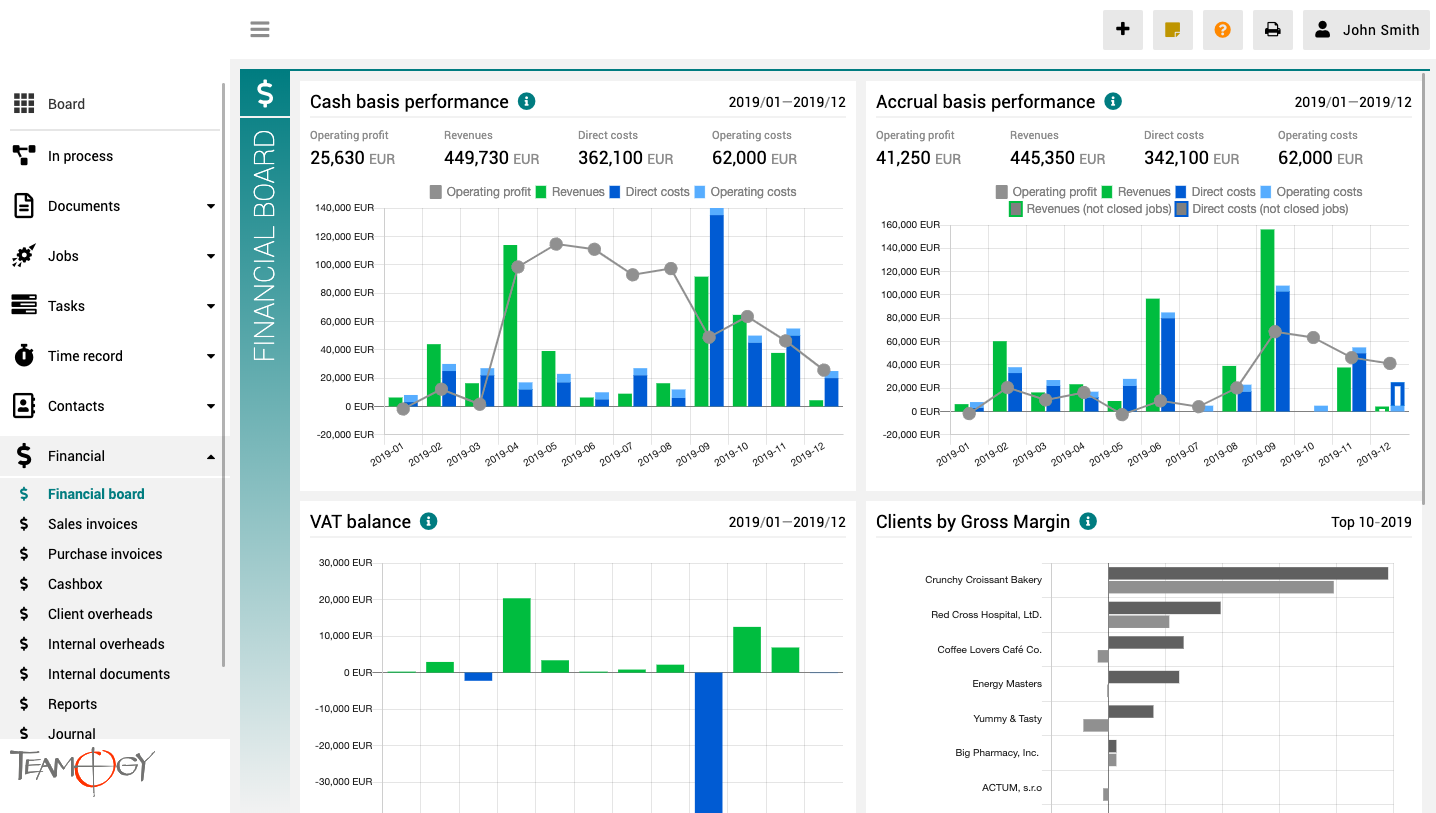
Pulpit finansowy to miejsce, które zapewnia wyraźny obraz całej agencji. Zawiera wykresy z kluczowymi wskaźnikami – ogólną ewolucję przychodów i kosztów agencji, zgodnie z aspektami finansowymi i jobu, różne poglądy na rentowność i wydajność klienta oraz raport VAT.
Wszystkie wykresy mają opcję wyboru zakresu dat, a dodatkowo raporty klientów mają również opcję monitorowania klientów najlepiej i najgorzej ocenianych.
Teamviewer
Teamviewer - remote control There are some problems that we need to fix from your PC or Mac. For this situations there is Teamviewer. 1. Go to the website of Teamviewer, click here. 2. Click on Download. 3. Choose your operating system. 4. Download and install it. 5....
Eksport
Eksport Zdajemy sobie również sprawę, że raporty są ważne dla wszystkich i czasami trzeba z nimi pracować w bardzo zaawansowany sposób. Teamogy pozwala eksportować wszystkie dostępne dane do Excela (.xls). Wybierz raport, który chcesz wyeksportować, zastosuj dowolne...
Modification of Client seleciton in Jobs
Modification of Client selection in Job We have a search of Companies in the job, which are usually your clients. Let’s show you, how to setup this search, how you want. 1. In the left navigation menu, unroll Configuration. 2. Click on Register. 3. Into the...
Job mandatory fields
Job mandatory fieldsWe have a lot of fields in the system that can be filled. In our Teamogy, however, you can set which fields you want to be mandatory and which are not. See the following instructions on how to set the mandatory fields. 1. In the left navigation...
Job status modification
Job status modificationWe have default statuses in Teamogy. It’s WAITING, OPEN, DONE, CLOSED anc CANCELLED. We can add another statuses. There is list of statuses, which are already entered into the system, but they are not used in the statuses of jobs. Please, use...
New Time Record Category
New Time Record Category We know for partners it is very difficult to fullfill wishes and needs of Clients. One of the needs is to add the Job Category. 1. Unroll Configuration. 2. Click on Register. 3. Search by Main Key - Type there CATEGORY.PRICE. 4. Open the...
Time track comment activation
Time record comment activationTime record comment is switched off in default. Follow these steps to activate it successfully: 1. In the left navigation menu, unroll Configuration. 2. Click on Register.3. Into the Breadcrumb Sub-Key type TIME.TRACK.COMMENT and choose...
Time track category activation
Time record category activationTime record category is switched off in default. Follow these steps to activate it successfully: 1. In the left navigation menu, unroll Configuration. 2. Click on Register. 3. Into the Breadcrumb Sub-Key type...
New card
New card Client will need to add his own card into the cashbox’s card’s operations. Follow these steps to add the card into Teamogy successfully: 1. In the left navigation menu, unroll Configuration. 2. Click on Register.3. Into the Breadcrumb Main-Key type...
Import Companies
Import CompaniesWe need tools to do the agenda more faster. Import is one of these tools. Clients often have many contacts, which they want to enter into the Teamogy. You can import it as one big part. You just need to follow these steps to do it successfully: 1....
Skontaktuj się z nami
Jeśli nadal masz jakiekolwiek pytania lub potrzebujesz dalszej pomocy, skontaktuj się z pomocą techniczną Teamogy. Możesz korzystać z czatu online (wewnątrz Teamogy lub w dowolnym miejscu www.Teamogy.com w prawym dolnym rogu) a otrzymasz szybką odpowiedź.