
O Pulpicie finansowym
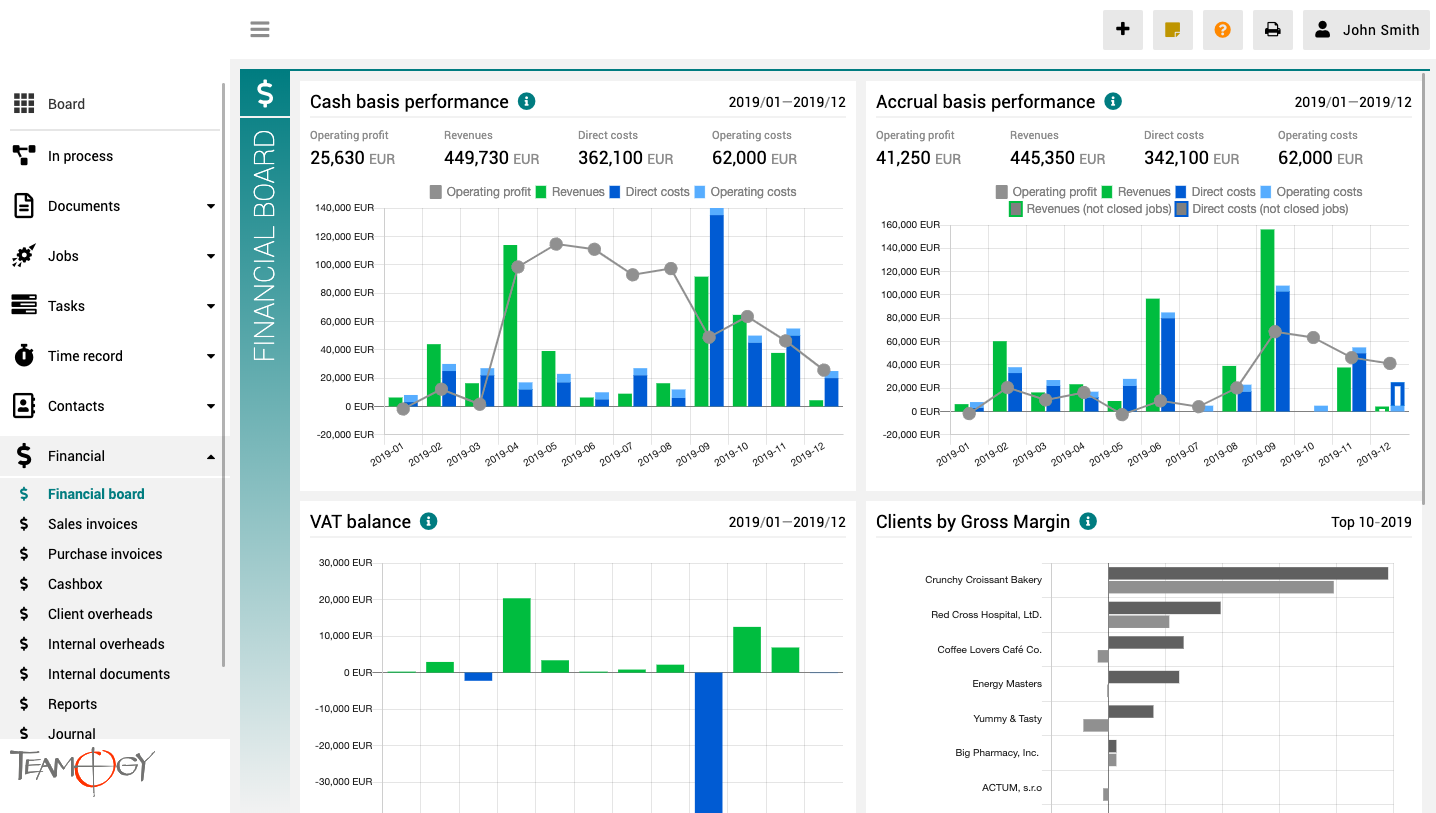
Pulpit finansowy to widok, które zapewnia przejrzysty obraz całej firmy. Zawiera wykresy z kluczowymi wskaźnikami – ogólną ewolucją przychodów i kosztów firmy, według aspektów finansowych i jobów, różne spojrzenia na rentowność i wydajność klienta oraz raport VAT.
Wszystkie wykresy mają opcję wyboru zakresu dat, a dodatkowo raporty klientów mają również opcję monitorowania klientów najlepiej i najgorzej ocenianych.
New Document Types
New Document TypesThese are the most used documents types that are predefined in Teamogy - Basic Document, Sales Quotation, Purchase Order, Contract, Meeting Report and any agency can start using them immediately. However, Teamogy is a very flexible system and adding...
Access Rights
Vat A value-added tax (VAT) is a consumption tax placed on a product or service. We will set up a default VAT rates for you based on your country. VAT rates will be ready for you at the beginning of using Teamogy. We calculate with case you would like to add...
Logo
Logo Every our Client could customize Teamogy. You could also change a logo. How to do it? 1. In the left navigation menu unroll Configuration. 2. Click on Register. 3. Use breadcrumb Main key. 4. Choose LOGO. 5. Now open Logo. In the column Ownership should...
Logowanie na nowym urządzeniu
Logowanie na nowym urządzeniu1. Przejdź do strony logowania Teamogy. Wprowadź swoją nazwę użytkownika i osobiste hasło.2. Wprowadź kod uwierzytelniający. Kod jest wysyłany na numer telefonu komórkowego przypisanego do konta użytkownika.Jeśli nie otrzymasz kodu...
Ledger
Reports 1. In the left navigation menu unroll Financial. 2. Click on Reports. Now, you are in the view Reports. It is a overview of profitability the Job. You could compare quoted values with real values. If your Job was non profit, Teamogy will mark these...
New Cash Payment
New Cash Payment 1. In the left navigation menu unroll Financial. 2. Click on Cashbox. 3. Click on New Voucher. 4. Choose New Cash Payment.4. Choose Bill Reimbursement. Pair Purchase Invoice to the relevant Job. If you did right, you will see the value of Purchase...
New Cash Credit
New Cash Credit 1. In the left navigation menu unroll Financial. 2. Click on Cashbox. 3. Click on New Voucher. 4. Choose New Cash Credit.4. Choose Bill Reimbursement. Pair Purchase Invoice to the relevant Job. If you did right, you will see the value of Purchase...
New Cash bill reimbursement
New Cash bill reimbursement1. In the left navigation menu unroll Financial. 2. Click on Cashbox. 3. Click on New Voucher. 4. Choose Cash bill reimbursement. Pair Cash bill reimbursement to the relevant Job. If you did right (see here), you will see the value of Bill...
PrintEvery element of Teamogy you could Print out. This manual will show how to Print a Document. But you could apply this manual to all elements of Teamogy, which are printable. 1. Find the Document which you would like to Print out. 2. Click on the icon of the...
Pierwsze logowanie do Teamogy
Pierwsze logowanie do TeamogyKażdy nowy użytkownik otrzymuje wiadomość e-mail z danymi do logowania: nazwą użytkownika, tymczasowym hasłem oraz linkiem do systemu. 1. Kliknij w przycisk z linkiem, dodanym w mailu. Przeklej z maila swoją nazwę użytkownika i hasło...
Get in Touch
If you have problem or need further assistance, do not hesitate contact Teamogy Support. Use online chat (inside Teamogy or everywhere on www.Teamogy.com in the lower right corner) and you will get prompt reply.