
O Pulpicie finansowym
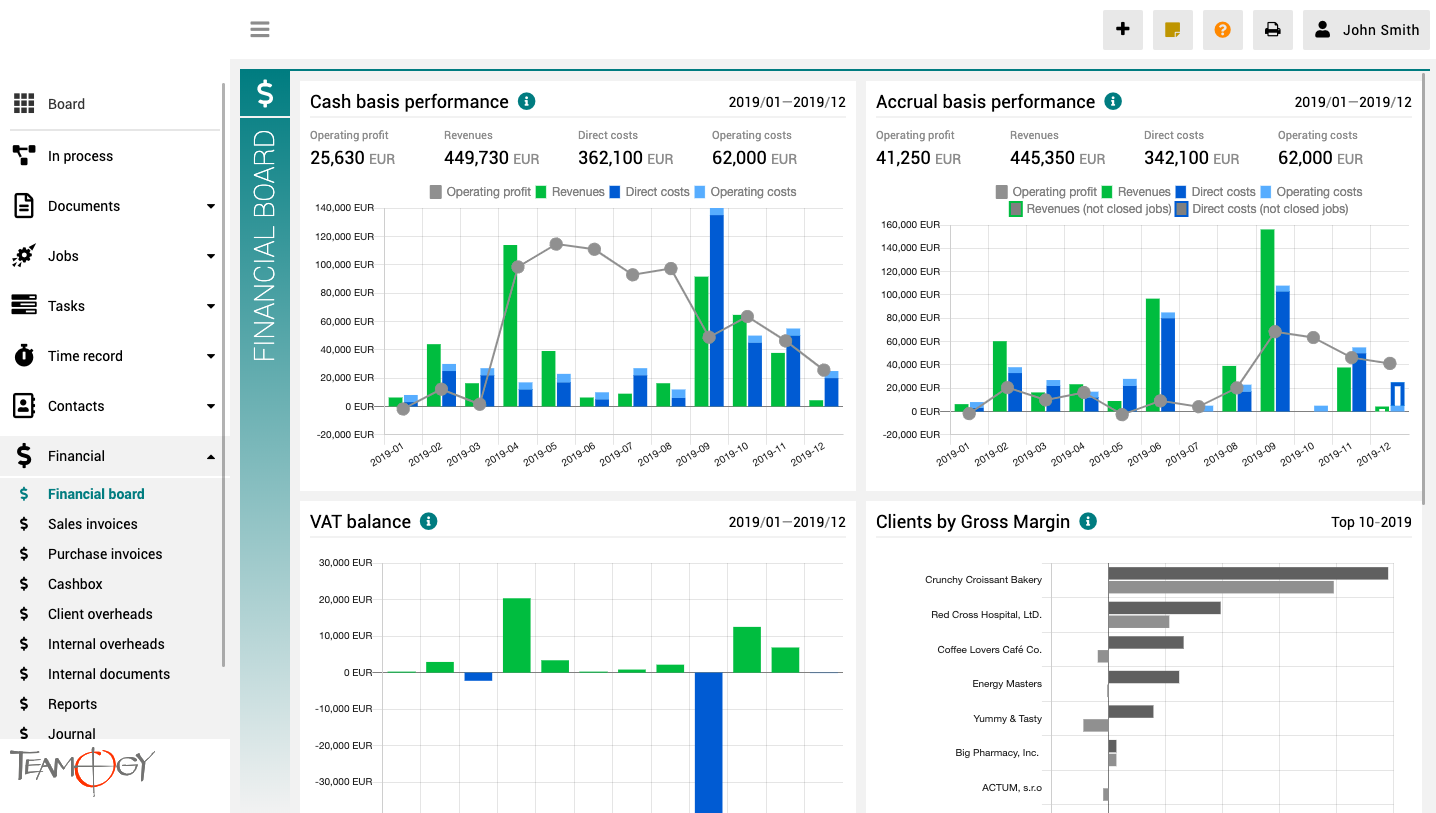
Pulpit finansowy to miejsce, które zapewnia wyraźny obraz całej agencji. Zawiera wykresy z kluczowymi wskaźnikami – ogólną ewolucję przychodów i kosztów agencji, zgodnie z aspektami finansowymi i jobu, różne poglądy na rentowność i wydajność klienta oraz raport VAT.
Wszystkie wykresy mają opcję wyboru zakresu dat, a dodatkowo raporty klientów mają również opcję monitorowania klientów najlepiej i najgorzej ocenianych.
Job lifecycle
Job lifecycleRoles on Job Owner - User who manage the job and have responsibility for realisation (set on job) Participants - User(s) who participate on the job realisation (set on job) Job supervisor - User(s) who can supervise all jobs (system role) Job approver -...
Password change
Password Change You can easily change your Password to the system. 1. Click on your photo in User area in the top right corner of the screen.2. Click on User settings.3. Click on the option Password change.4. Enter your old Password and new Password (New Password...
About Attendance
About AttendanceThis functionality in Teamogy allows the company to track and monitor Attendance of their employees. It shows how much time each employee spends in work each day. Attendance enables you to track late arrivals, early departures and time taken on breaks....
Check in & Check out
Check in & Check outIt is very simple how to Check in & Check out the attendance. Check in 1. Click on your photo in User area. 2. Click on the icon Check in.3. Perfect! You have checked in your attendance.Check out 1. Click on your photo in User area. 2....
Signature
SignatureYou can add your signature to the system. The signature will be shown at the end of the Documents, Invoices etc. 1. Click on your photo in User area in the top right corner of the screen.2. Click on User settings.3. Click on the option Upload on the...
Change language
Change LanguageIt is very simple to change the Language of the system. Each User have option to change the Language in Teamogy. 1. Click on your photo in User area in the top right corner of the screen.2. Click on User settings.3. Click on the option Change language....
Font change
Font Change Teamogy allows you to change the font to a smaller or larger font size that will make your work with Teamogy more comfortable. 1. Click on your photo in User area in the top right corner of the screen.2. Click on User settings.3. Click on the option Font...
Version 3.2
What is new in 3.2 version?
Attendance, changes in user area and Gems.
Ready to Going live
Ready to Going liveThis step is formal end of onboarding. Client should be aware that all agreed services beeing delivered. System is set and ready for use and users knows how to work and maintain the system. Now is time to sign the handover with client and also...
Going live with Teamogy
Going live with TeamogyJust wow! So fast and we are ready to launch Teamogy in the company. Now the real work starts, mainly for key people in company, to keep pushing people to work with the new tool. But as we know after 20 days it will become a natural part of your...
Get in Touch
If you have problem or need further assistance, do not hesitate contact Teamogy Support. Use online chat (inside Teamogy or everywhere on www.Teamogy.com in the lower right corner) and you will get prompt reply.
