
O Pulpicie finansowym
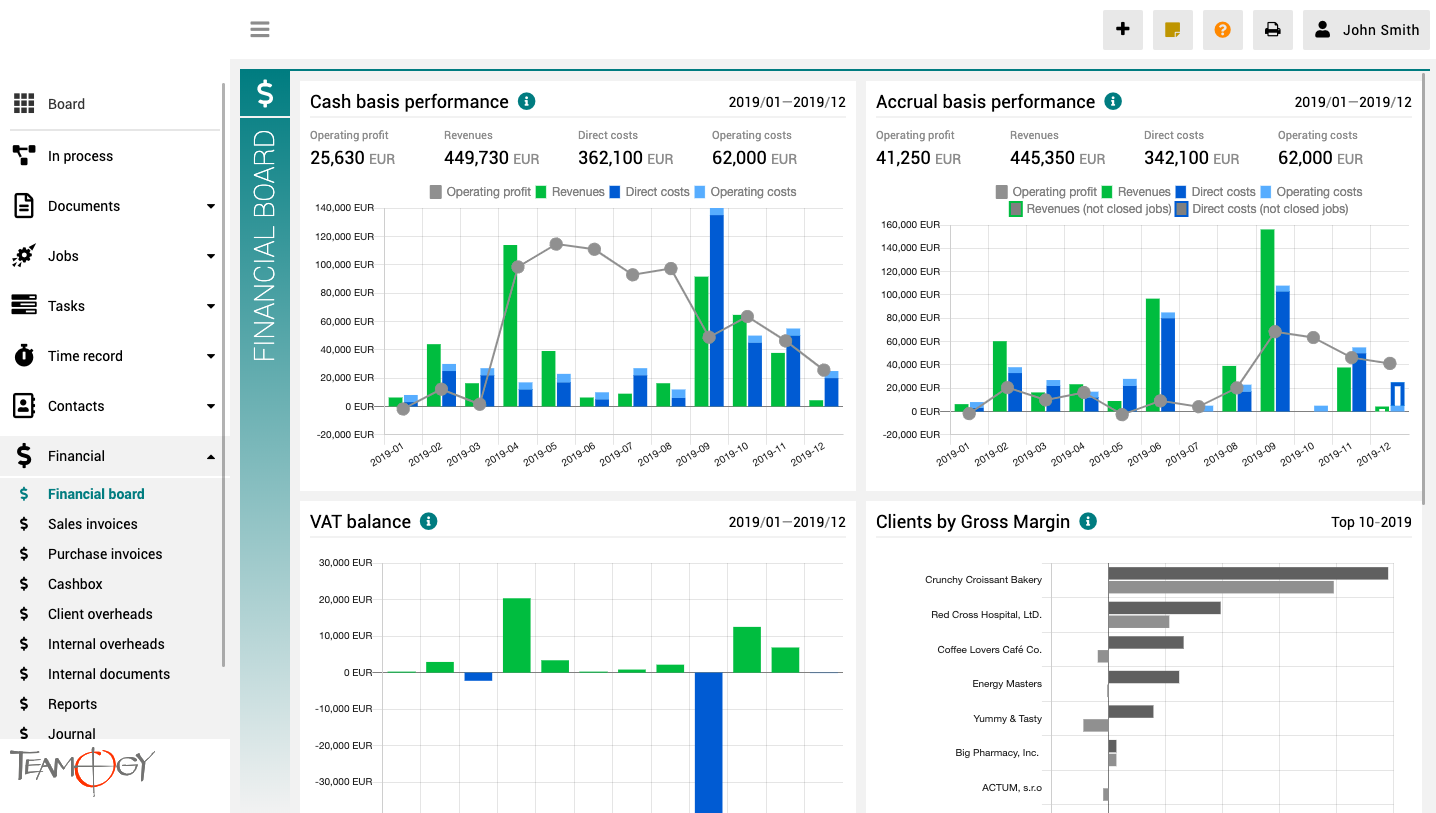
Pulpit finansowy to miejsce, które zapewnia wyraźny obraz całej agencji. Zawiera wykresy z kluczowymi wskaźnikami – ogólną ewolucję przychodów i kosztów agencji, zgodnie z aspektami finansowymi i jobu, różne poglądy na rentowność i wydajność klienta oraz raport VAT.
Wszystkie wykresy mają opcję wyboru zakresu dat, a dodatkowo raporty klientów mają również opcję monitorowania klientów najlepiej i najgorzej ocenianych.
Create A Task By Quick Button
Create A Task By Quick ButtonWe would like to offer you the fastest way how to use the Teamogy. Quick Button is one of this features. Check the GIF below to get you know, how to create a Task by Quick Button. Complete All Details. Mandatory Details are red underlined...
Tworzenie timesheetu w planerze zadań
Version 2.10
What's new in Teamogy 2.10 Release date: 2019-06-29 Improvements Possibility to share Time Tracks and Tasks across more business units Speed improvement in loading large data volume New user can be created as a DRAFT user and activated later Attachments as...
Version 2.9
What's new in Teamogy 2.9 Release date: 2019-06-15 Improvements New board (status) view for Jobs Reorganisation of left navigation menu Possibility to define who can restart the process Improvement details 1. New board (status) view for Jobs Jobs now can...
Version 2.8
What's new in Teamogy 2.8 Release date: 2019-06-07 Major functionality Export to Excel Improvements Company - attachments - add attachments to Company. Sales invoices - proforma invoices - values of proforma invoices visible in views Bug fixes Invoices -...
Version 2.7
What's new in Teamogy 2.7 Release date: 2019-05-31 Improvements Job owner visible in Sales / Supplier invoice table - now it's possible to send invoices for approval to Job owners automatically. New option for Sales / Supplier invoices sorting - by due date....
About Binder
About BinderBinder is a place, where every company can collect records for one large campaign. Do you have big campaign for one client and have many records in Teamogy due to this? Then Binder is the right feature for you. Now there is possibility to sort Documents,...
Use Binder in Views
Use Binder in ViewsBinder is a tool, which can be used in vary views. Check the GIF below.Get in Touch If you have problem or need further assistance, do not hesitate contact Teamogy Support. Use online chat (inside Teamogy or everywhere on www.Teamogy.com in the...
Group Records to Binder
Group Records To BinderIn the first step we created a binder. We can put the records to the Binder. Check the GIF below.Get in Touch If you have problem or need further assistance, do not hesitate contact Teamogy Support. Use online chat (inside Teamogy or everywhere...
Create a Binder
Create a Binder1. In the left navigation menu, scroll Documents. 2. Click on the Binders view. 3. Click on the New document button. 4. Choose Binder.5. Complete all details. Once you complete all requested details, press SAVE button.6. Perfect! The binder is created....
Get in Touch
If you have problem or need further assistance, do not hesitate contact Teamogy Support. Use online chat (inside Teamogy or everywhere on www.Teamogy.com in the lower right corner) and you will get prompt reply.