
About Financial Board
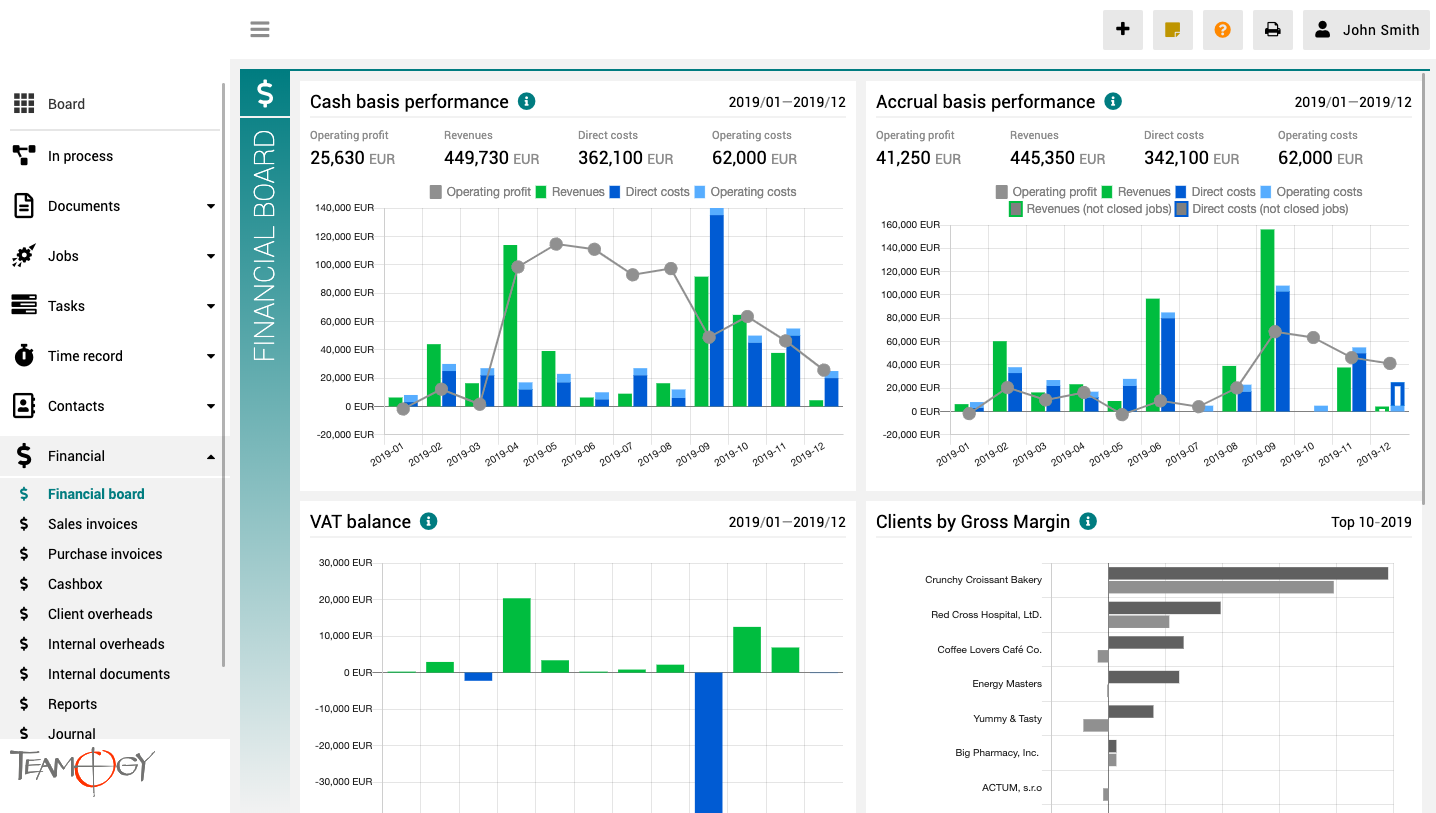
The finance board is a place that provides a clear view of the entire company. It contains charts with key indicators – overall evolution of revenues and costs of the company, according to financial and Job aspects, various views on client profitability and efficiency, and VAT report.
All charts have the option to select a date period while client reports also have the option to monitor the best and worst ranked clients.
1. Accurate contacts database
1. Accurate contacts databaseThe journey with Teamogy begins. The first step to mastering Teamogy is getting the hundreds and thousands of contacts that every company stores under control. Use the Teamogy features to your best advantage, so they bring order to your...
New Meeting Report
New Meeting Report1. In the left navigation menu, select unroll Documents. 2. Click on My Documents or All Documents. 3. Click on New document. 4. Choose Meeting report.5. Complete all details. Mandatory fields are red underlined (can be different by company’s...
New Purchase Order
New Purchase Order1. In the left navigation menu, select unroll Documents. 2. Click on My Documents or All Documents. 3. Click on New document. 4. Choose new Purchase order.5. Complete all details. Mandatory fields are red underlined (can be different by company’s...
New Sales Quotation
New Sales Quotation1. In the left navigation menu, select Unroll Documents. 2. Click on My Documents or All Documents. 3. Click on New document. 4. Choose Sales Quotation.5. Complete header details. Mandatory fields are red underlined (can be different from the...
New General Document
New Document1. In the left navigation menu, select unroll Documents. 2. Click on My Documents view or All Documents view. 3. Click on New document. 4. Choose document.4. Choose New document. 5. Complete all header details. Mandatory fields are red underlined...
List Of Colleagues
List Of Colleagues1. This is the place, where you can see all your colleagues from the company and their contact details. 2. You can see the information about the colleague and the name of his company. There are also icons that show online status, attendance status or...
My Notes
My NotesThis feature enables you to document any comments, reminders, or other notes. You can input these notes directly from the Dashboard. There are two types of notes - agency and personal. Both of them are private and visible only for you. It is a feature that...
Add New Sticker
Add New Sticker1. Click on the Sticker icon in the top right corner.2. Write any comment to the sticker.3. Perfect! You added sticker.You can also add a sticker in other places in the system: Invoices, Documents, Jobs, Tasks, Internal or Client overheads etc.Important...
Change A Theme
Change A Theme1. Click on your name in User area in the top right corner of the screen.2. Click on User settings.3. Choose the Color theme that you would like to use. 4. Click on OK button.5. Perfect! Your theme has been changed. Check the dark version of Teamogy in...
Upload A Photo
Upload A Photo1. Click on your name in User area in the top right corner of the screen.2. Click on User settings.3. Click on Upload. Choose photo from your device. 4. Click on OK button.5. Perfect! Your personal photo has been changed. If you do not have a photo, that...
Get in Touch
If you have problem or need further assistance, do not hesitate contact Teamogy Support. Use online chat (inside Teamogy or everywhere on www.Teamogy.com in the lower right corner) and you will get prompt reply.