
O Pulpicie finansowym
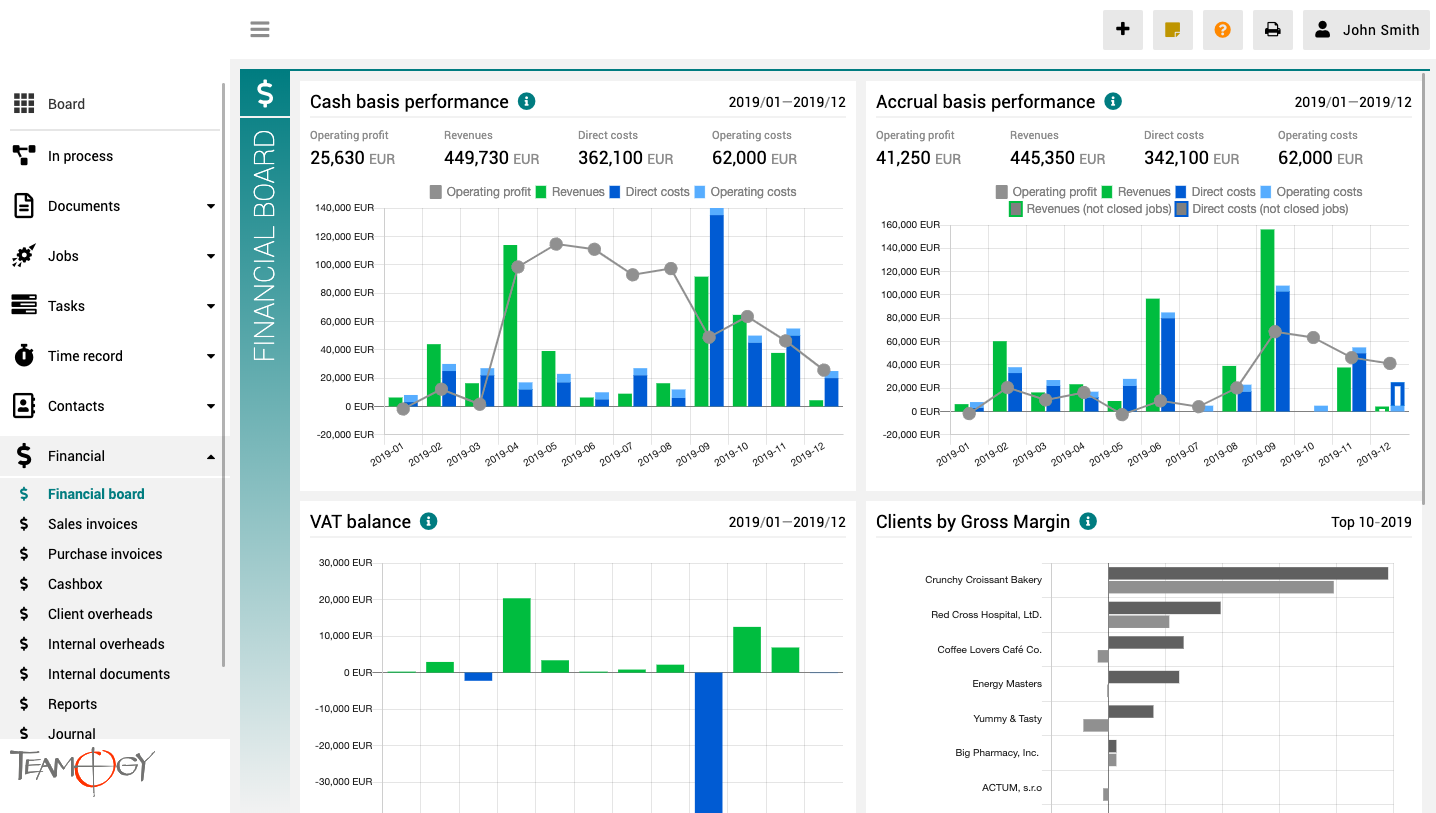
Pulpit finansowy to miejsce, które zapewnia wyraźny obraz całej agencji. Zawiera wykresy z kluczowymi wskaźnikami – ogólną ewolucję przychodów i kosztów agencji, zgodnie z aspektami finansowymi i jobu, różne poglądy na rentowność i wydajność klienta oraz raport VAT.
Wszystkie wykresy mają opcję wyboru zakresu dat, a dodatkowo raporty klientów mają również opcję monitorowania klientów najlepiej i najgorzej ocenianych.
About Dashboard
About DashboardDashboard is a homepage of your Teamogy. When you log in, Dashboard is the first page you will see on your display. On Dashboard you can see agency favourite links which can be customized for any agency. You can also see a List of Colleagues from your...
About Documents
About DocumentsThe Teamogy system will help you to manage the control of all your documents, from your first contact with a client, to writing meeting notes, to creating a quotation for the client, to filling the signed contract. You can create and store all important...
Find The Company
Find The Company1. In the left navigation menu, scroll Contacts. 2. Click on the Companies view.3. Type at least first three letters from Company name and press enter. There are more options, how to find the company. You could write three last letters from company...
About Contacts
About ContactsContacts is the place to manage a large number of your business contacts and their details. Contacts in the Teamogy system are divided into five components: Company, Persons, Brands, Suppliers and Clients. In the Company view, you can see the list...
Print Layout
Print LayoutThis manual will show you how to set up a print layout at documents. You can apply this manual to all elements of Teamogy. 1. In the left navigation menu unroll Documents. 2. Click on My Documents or All Documents. 3. Click on New document or choose...
Statuses
Statuses Any type of record, Documents, Jobs, Tasks, Invoices…, in Teamogy can have its own set of statuses, which help you to easily see the actual record progress. Statuses can be assigned manually or they are driven by an automatic approval procedure (depending on...
Categories
CategoriesCategories help you to sort your records in Teamogy. In the system default settings, there are few predefined categories, which can be easily changed /expanded for every type of record in Teamogy. If you want to choose category, check the GIF below. This...
New Contract
New Contract1. In the left navigation menu, select unroll Documents. 2. Click on My Documents or All Documents. 3. Click on New document. 4. Choose Contract.5. Complete all details. Mandatory fields are red underlined (can be different by company’s settings). 6....
1. Accurate contacts database
1. Accurate contacts databaseThe journey with Teamogy begins. The first step to mastering Teamogy is getting the hundreds and thousands of contacts that every company stores under control. Use the Teamogy features to your best advantage, so they bring order to your...
New Meeting Report
New Meeting Report1. In the left navigation menu, select unroll Documents. 2. Click on My Documents or All Documents. 3. Click on New document. 4. Choose Meeting report.5. Complete all details. Mandatory fields are red underlined (can be different by company’s...
Get in Touch
If you have problem or need further assistance, do not hesitate contact Teamogy Support. Use online chat (inside Teamogy or everywhere on www.Teamogy.com in the lower right corner) and you will get prompt reply.