
About Financial Board
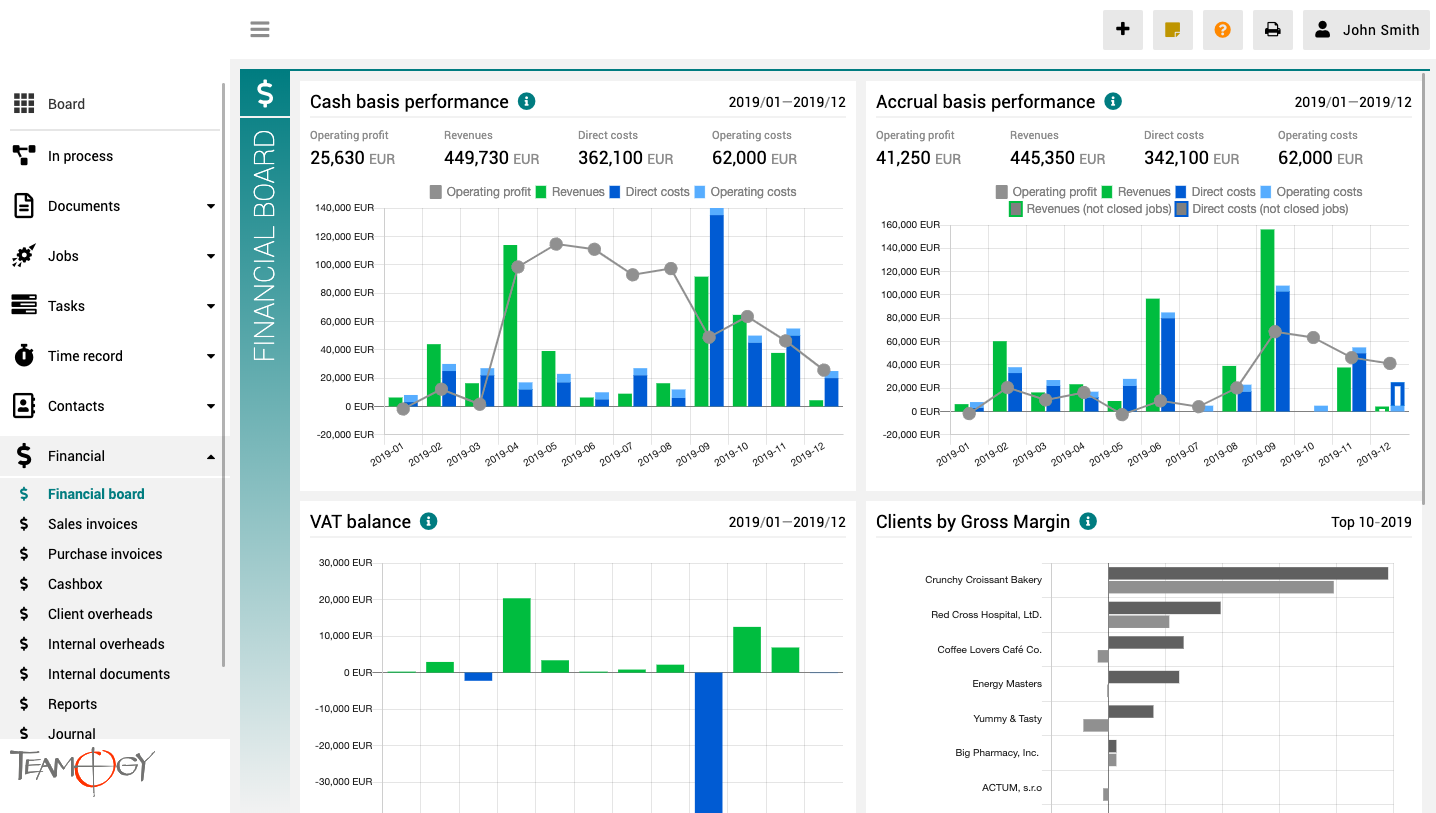
The finance board is a place that provides a clear view of the entire company. It contains charts with key indicators – overall evolution of revenues and costs of the company, according to financial and Job aspects, various views on client profitability and efficiency, and VAT report.
All charts have the option to select a date period while client reports also have the option to monitor the best and worst ranked clients.
About Attendance
About AttendanceThis functionality in Teamogy allows the company to track and monitor Attendance of their employees. It shows how much time each employee spends in work each day. Attendance enables you to track late arrivals, early departures and time taken on breaks....
Check in & Check out
Check in & Check outIt is very simple how to Check in & Check out the attendance. Check in 1. Click on your photo in User area. 2. Click on the icon Check in.3. Perfect! You have checked in your attendance.Check out 1. Click on your photo in User area. 2....
Signature
SignatureYou can add your signature to the system. The signature will be shown at the end of the Documents, Invoices etc. 1. Click on your photo in User area in the top right corner of the screen.2. Click on User settings.3. Click on the option Upload on the...
Change language
Change LanguageIt is very simple to change the Language of the system. Each User have option to change the Language in Teamogy. 1. Click on your photo in User area in the top right corner of the screen.2. Click on User settings.3. Click on the option Change language....
Font change
Font Change Teamogy allows you to change the font to a smaller or larger font size that will make your work with Teamogy more comfortable. 1. Click on your photo in User area in the top right corner of the screen.2. Click on User settings.3. Click on the option Font...
Version 3.2
What is new in 3.2 version?
Attendance, changes in user area and Gems.
Version 3.1
What is new in 3.1 version?
Text editor, new version of task planner, mentions
Teamviewer
Teamviewer - remote control There are some problems that we need to fix from your PC or Mac. For this situations there is Teamviewer. 1. Go to the website of Teamviewer, click here. 2. Click on Download. 3. Choose your operating system. 4. Download and install it. 5....
Editing in Teamogy
Editing in Teamogy In current Teamogy’s version there are two ways how to activate edit mode on documents. First option is to activate the edit mode by the EDIT button. The second way is double-clicking. Double-click anywhere in the document to activate EDIT...
Groups
GroupsEach Teamogy user belongs to certain groups. These groups affect what rights the user has in the system. What views he sees, what he can modify in them, what actions he can perform in the system, etc. So our groups are actually what determines rights in Teamogy....
Get in Touch
If you have problem or need further assistance, do not hesitate contact Teamogy Support. Use online chat (inside Teamogy or everywhere on www.Teamogy.com in the lower right corner) and you will get prompt reply.